
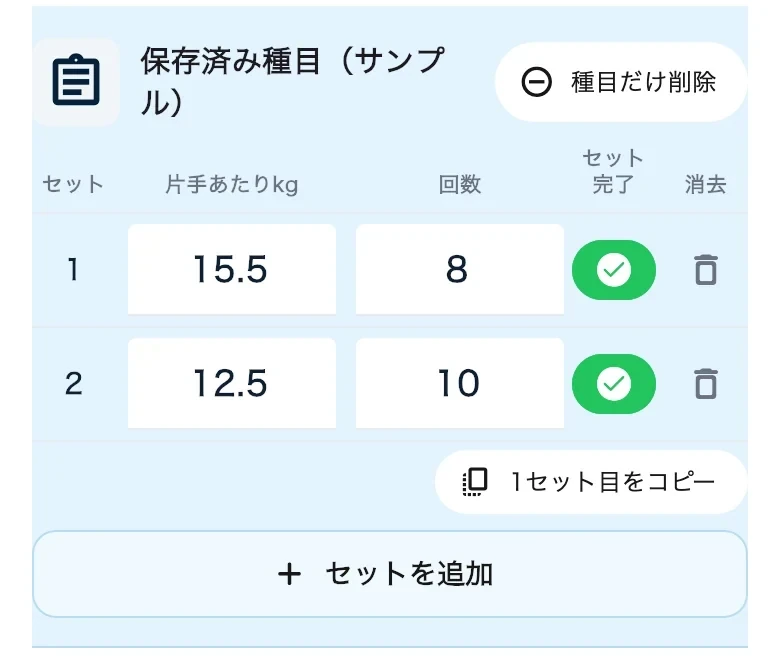
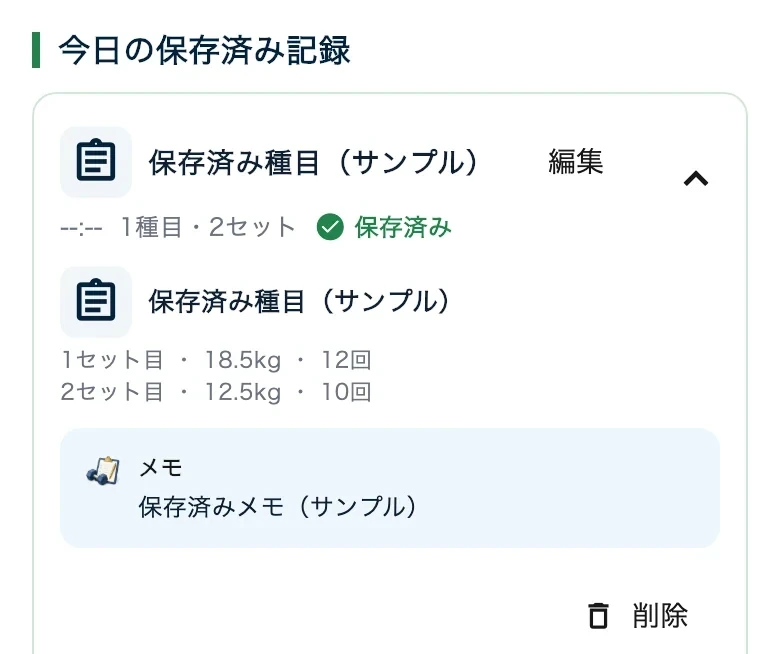
Workout log
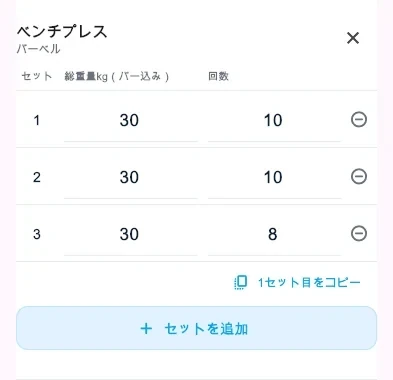
Choose an exercise and log reps, weight, time and notes by set.
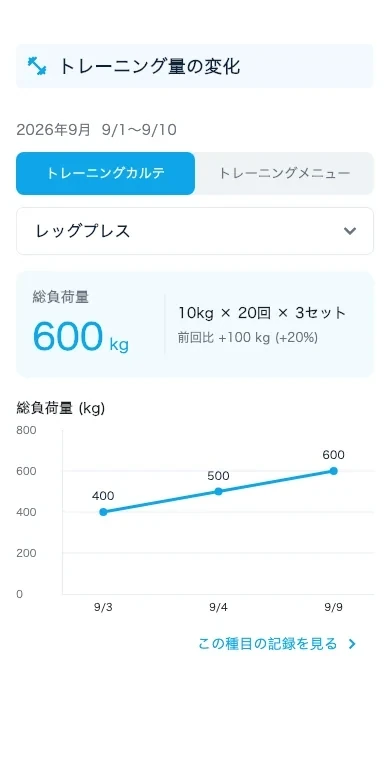
Compare with the previous session before choosing your next load.
Features
Members log workouts, meals and changes over time. Trainers review those records to plan the next session and follow up. See how people use each AirTre feature.
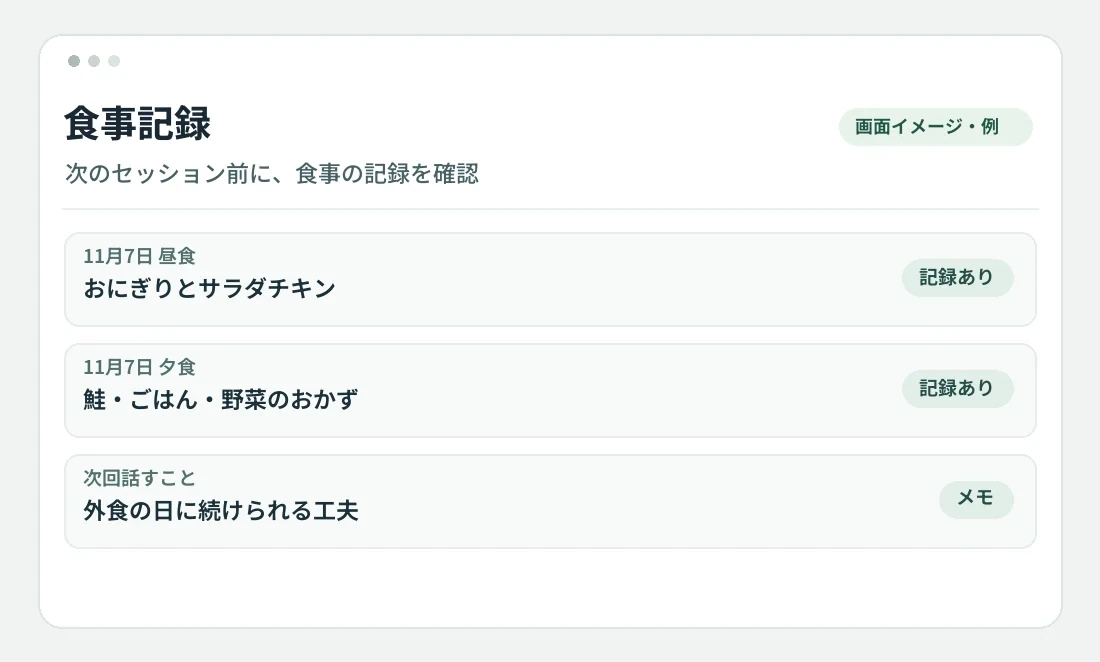
Product screenshots are edited for readability. Screens marked “Illustration” are explanatory mockups. Availability depends on plan, permissions and settings.
Screens illustrate the workflow and are not literal product captures.
For members Example workflow
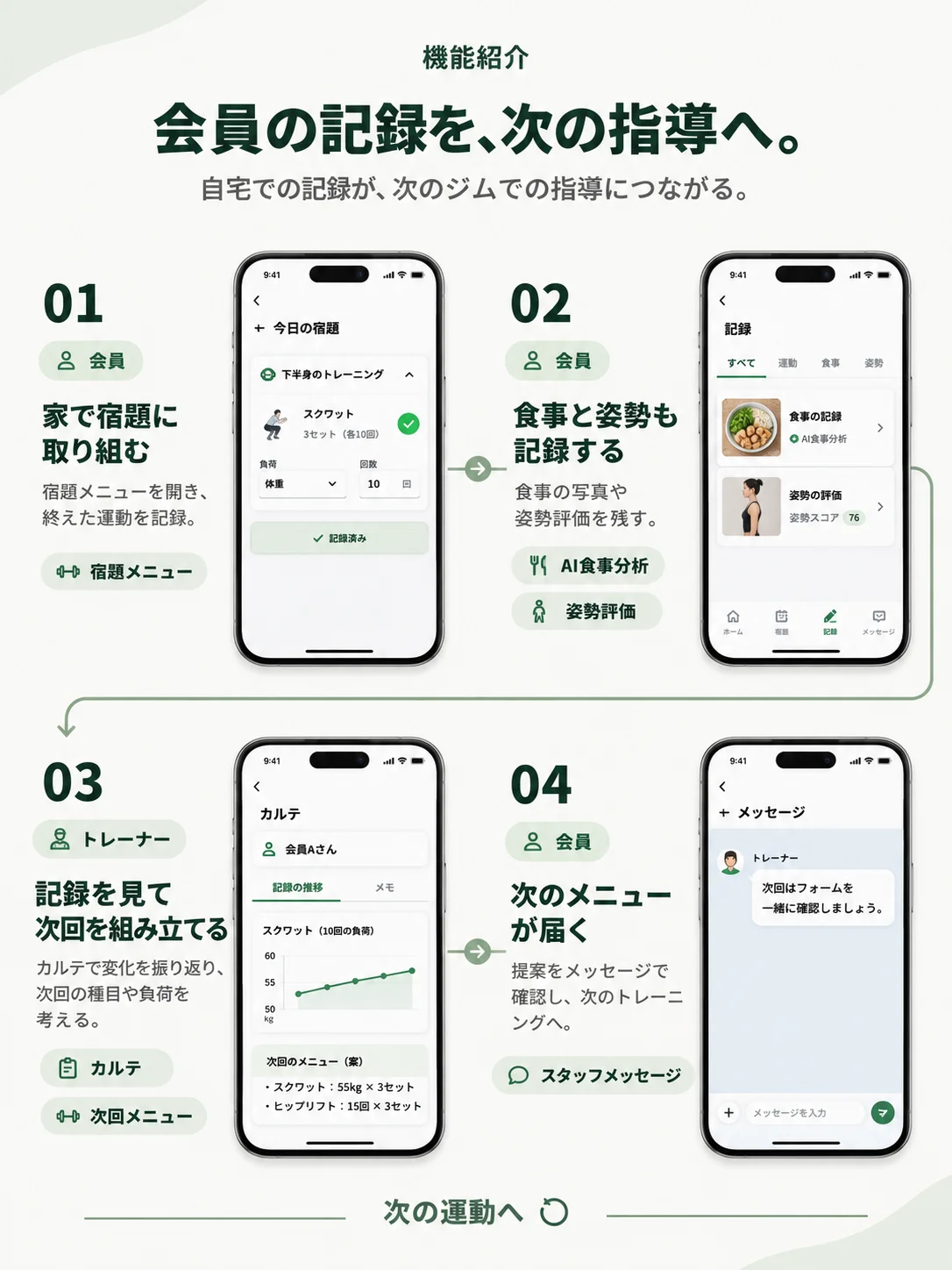
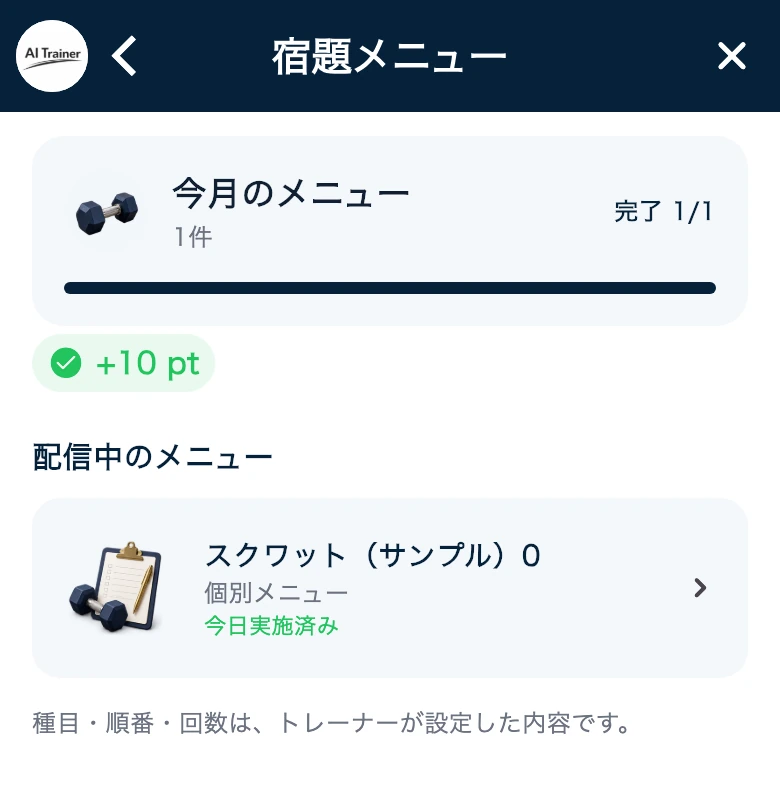
Open the assignment from your trainer and record the exercises you complete.
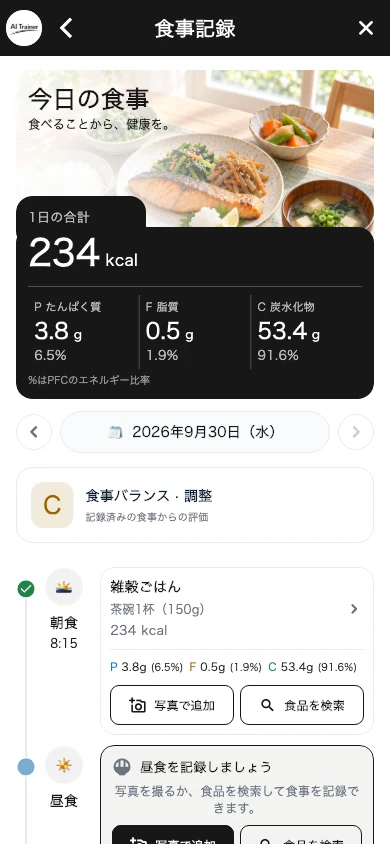
Assigned workoutsTake photos of meals, capture your posture, and review the estimate.
AI meal and posture assessmentYour trainer checks changes in the workout log and considers the next exercises and load.
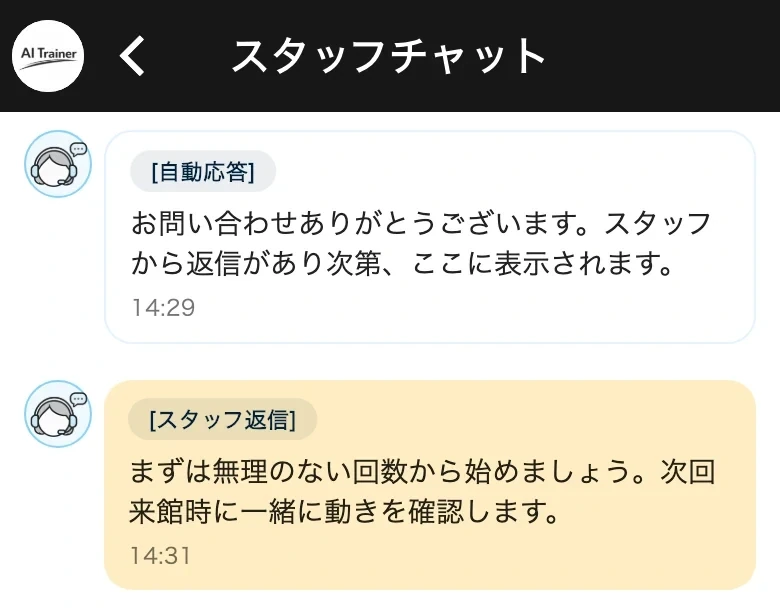
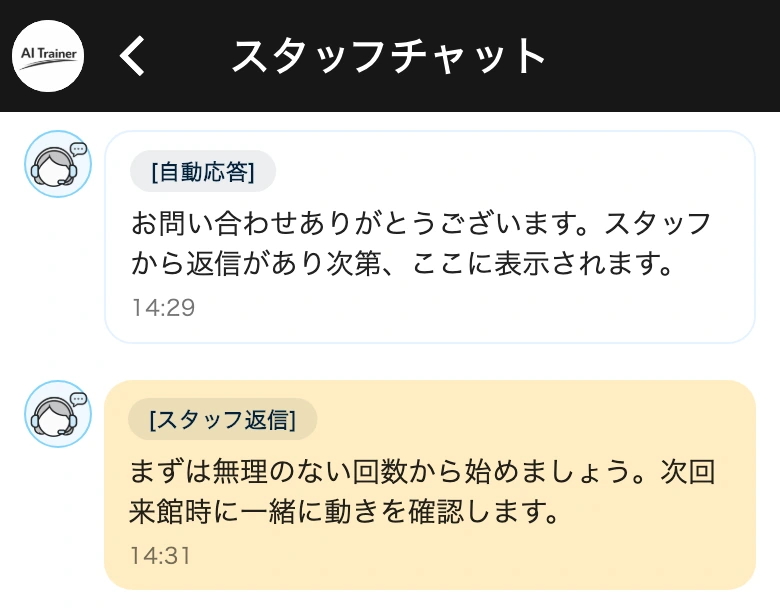
Workout log and session planRead your trainer’s suggestion in a message and get started on your next workout.
Trainer messagesFor trainers and staff Example workflow
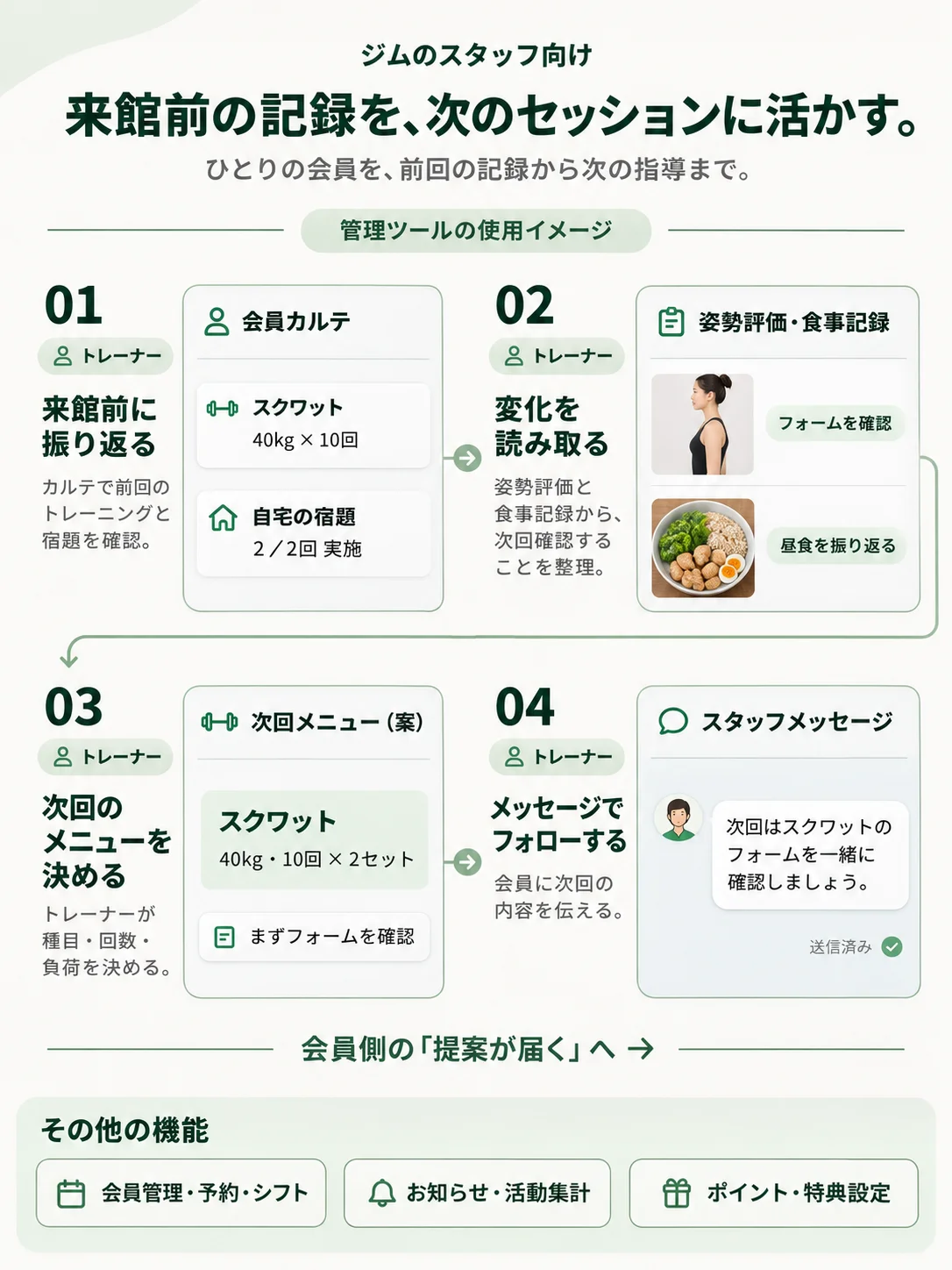
Check the previous workout and see which assignments the member has completed since.
Member log and assignmentsReview posture estimates and meal records to decide what to check next.
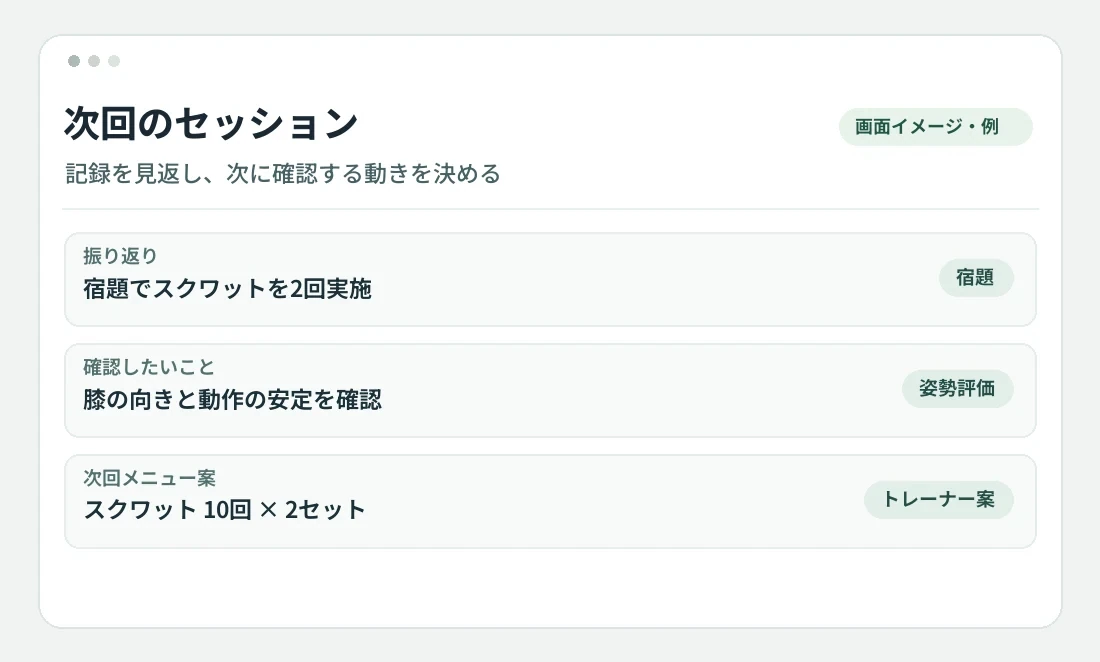
Posture and meal recordsUse the records to plan exercises, reps, and loads for the next session.
Next session planTell the member what comes next and what to focus on before their visit.
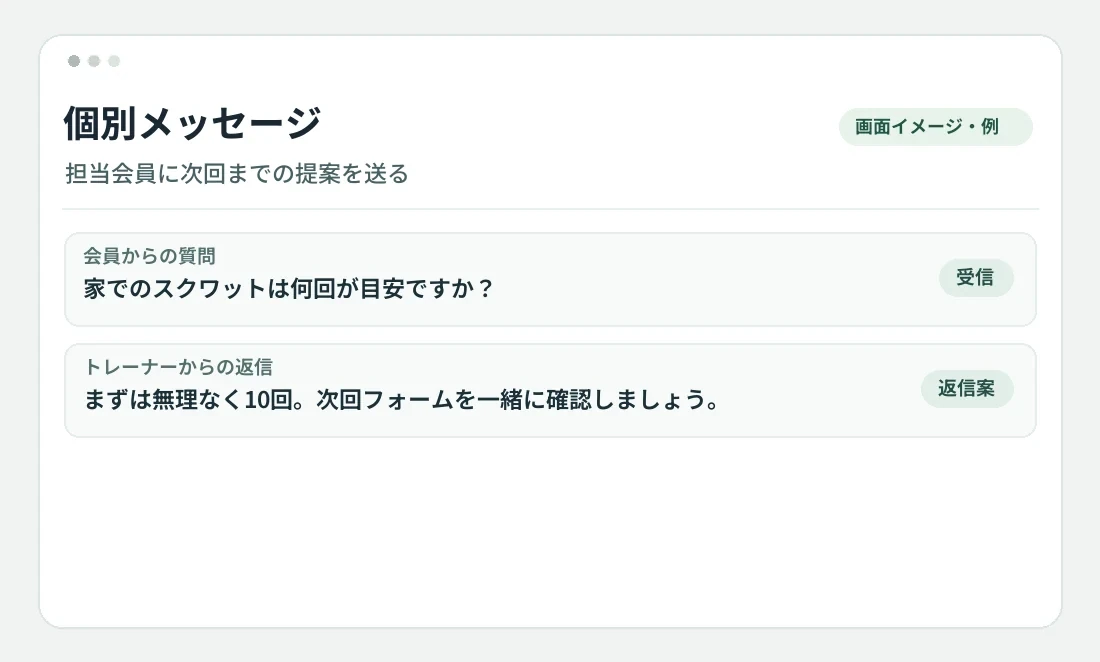
Trainer messagesMembers
Log assigned workouts at home and sessions at the gym, along with meals and measurements you can revisit.
Choose an exercise and log reps, weight, time and notes by set.
Compare with the previous session before choosing your next load.
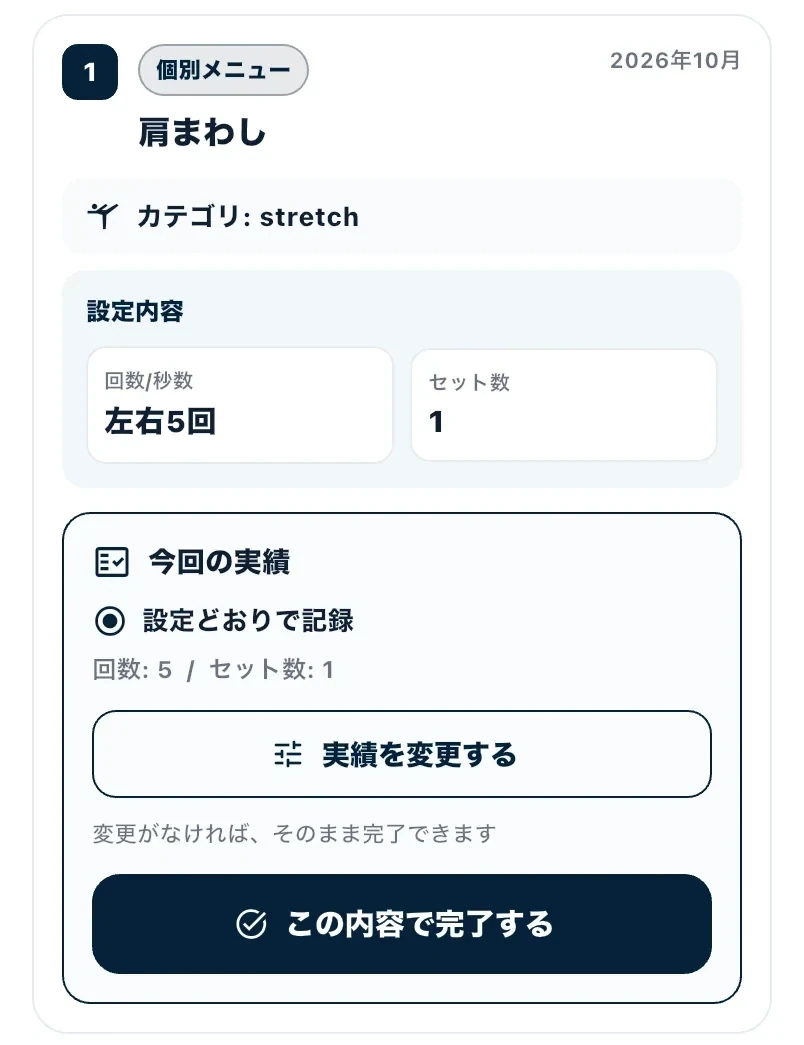
Follow the assigned workout and log what you completed.
Your trainer can use the record to discuss the next session.
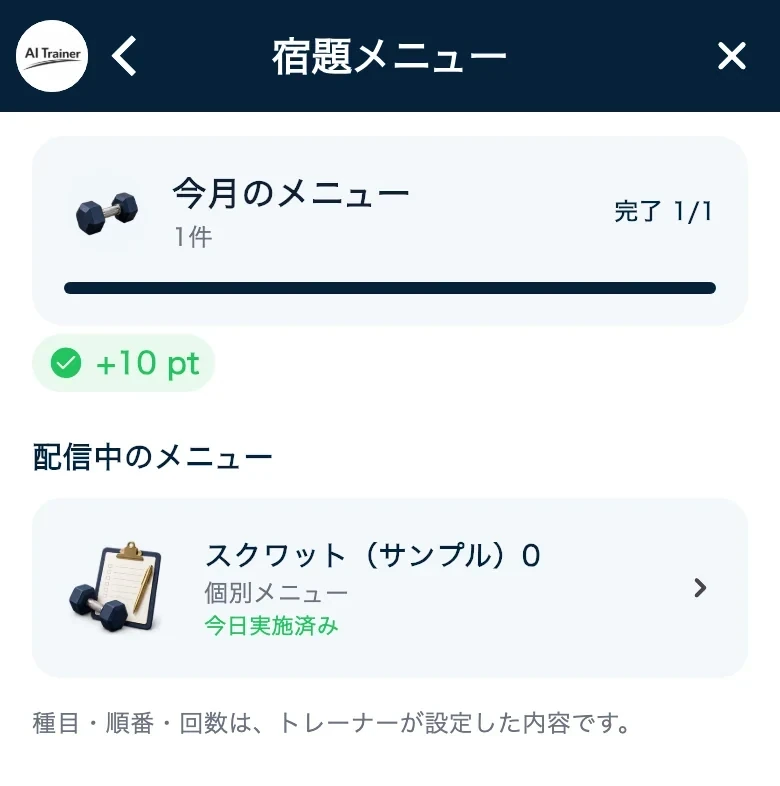
Open your trainer’s assignments and do them at home or at the gym.
Know what to do between sessions and share what you completed.
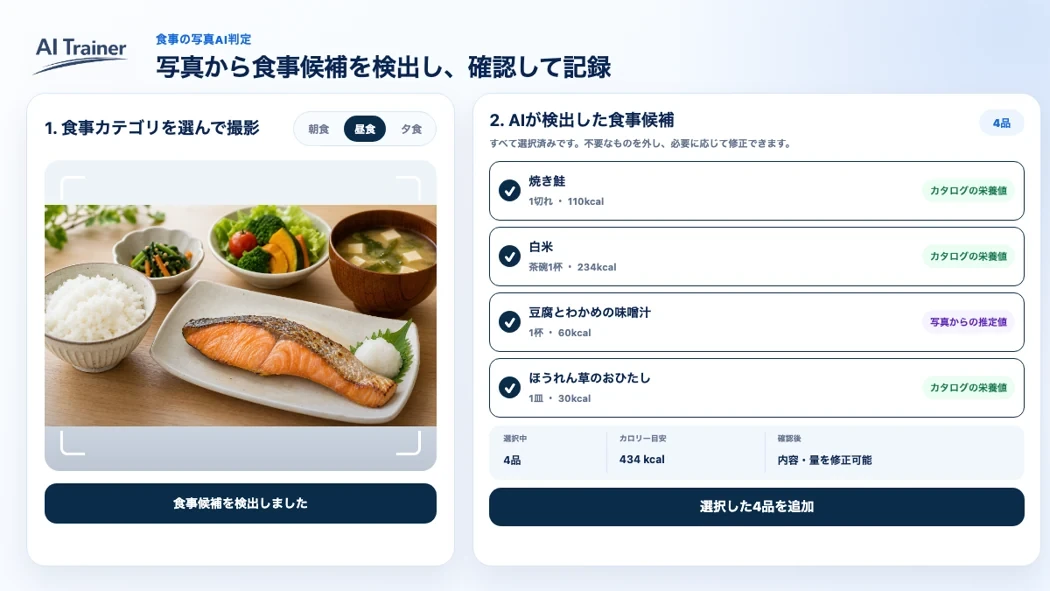
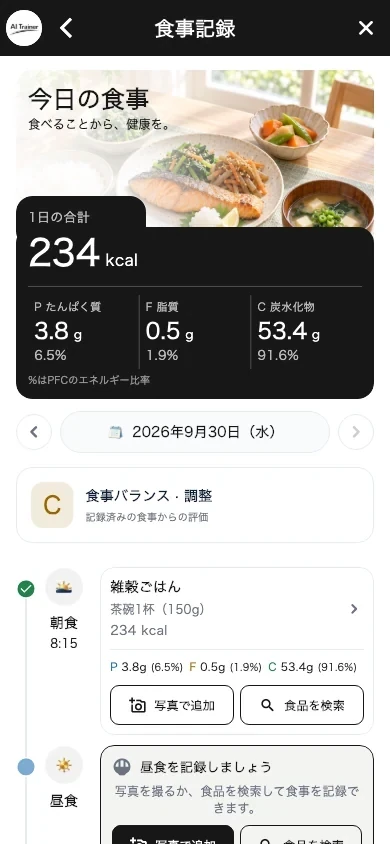
Photograph a meal, review the AI’s estimates, and correct them before saving.
Spend less time entering meals and review what and how much you ate.
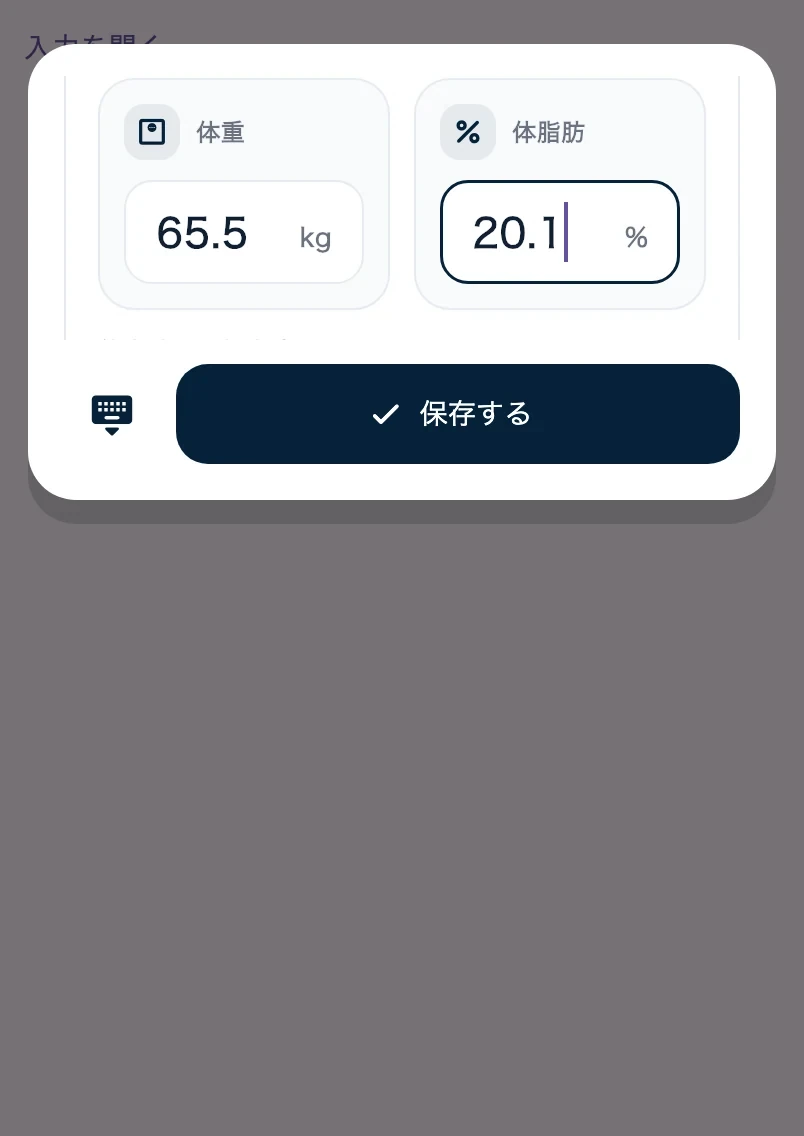
Weigh yourself and enter your weight and body fat percentage.
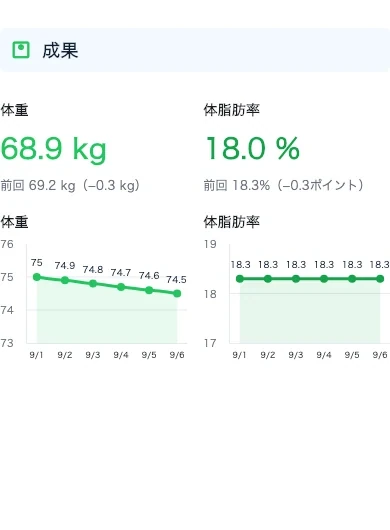
Track changes over time rather than a single reading.
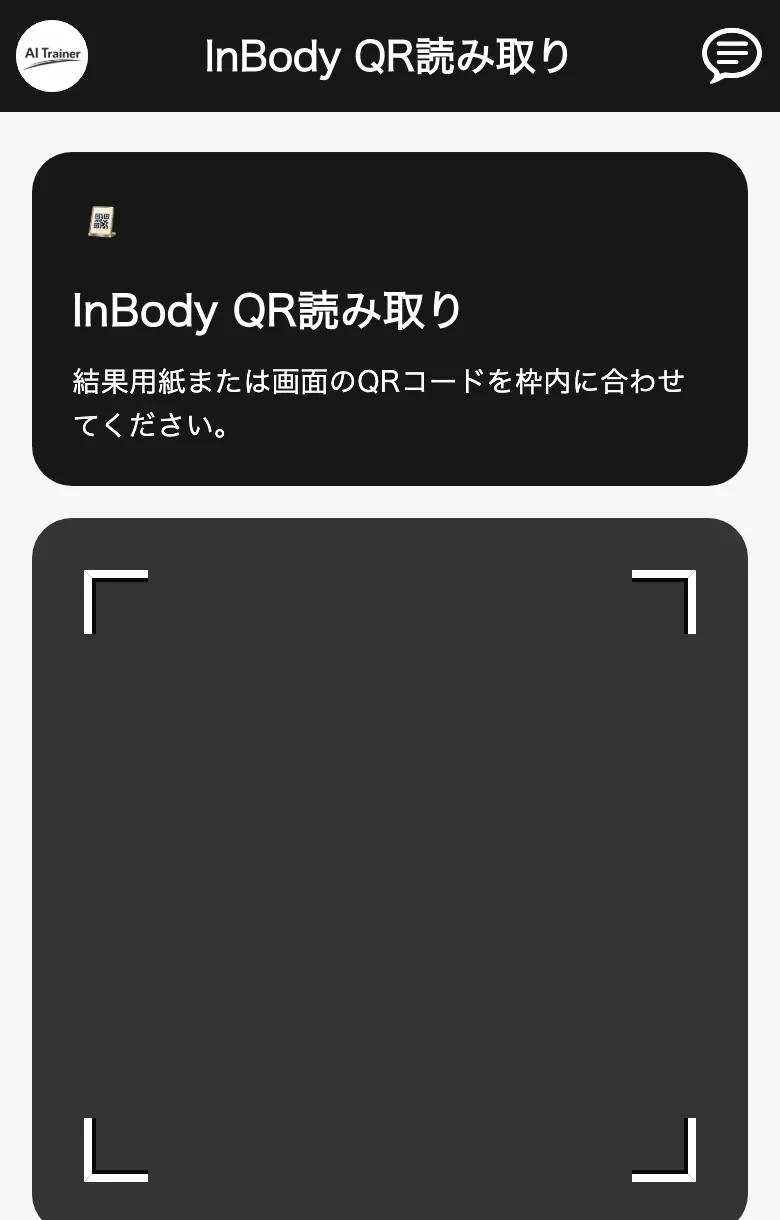
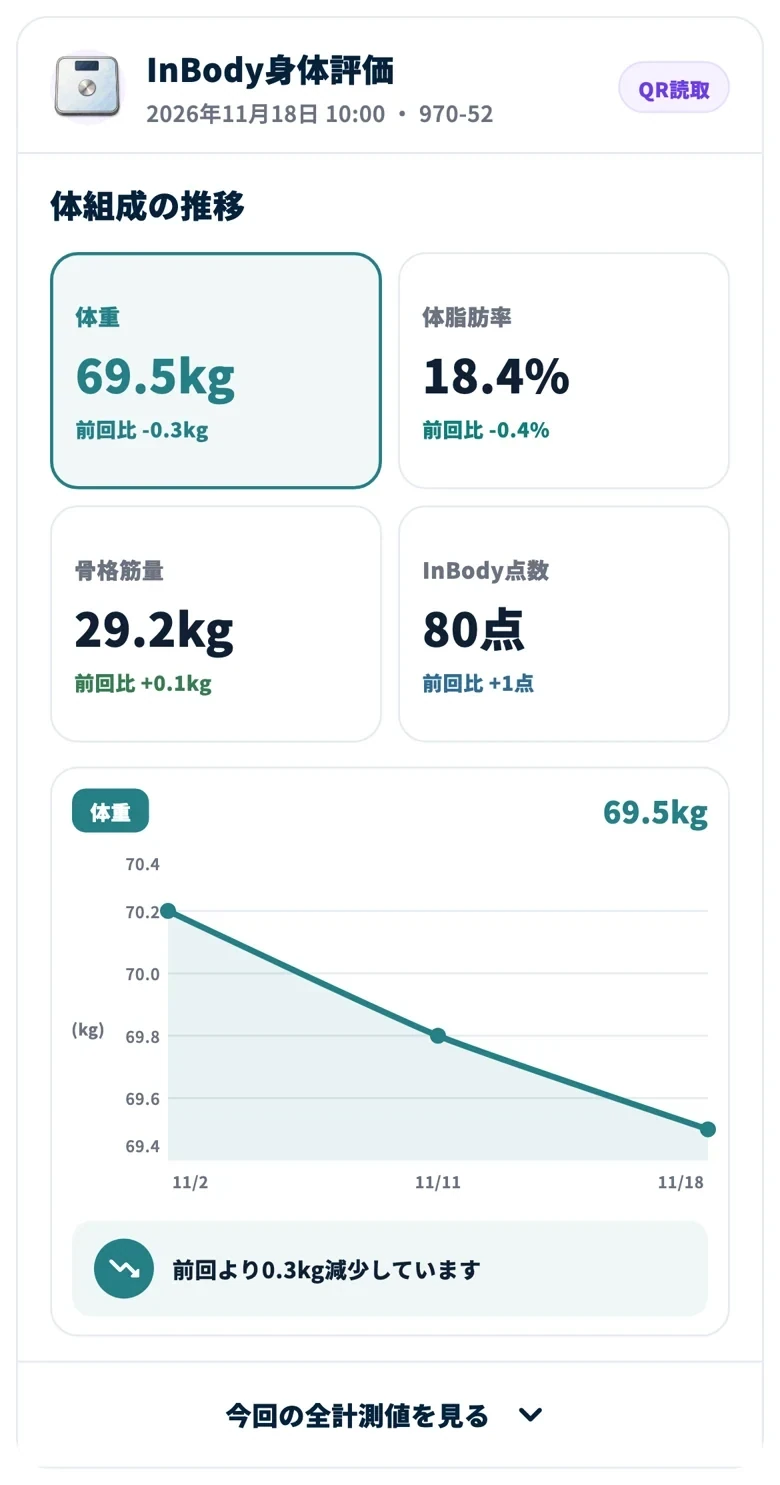
Scan the QR code from a supported InBody machine. Integration requires prior authorization.
Look back at changes in body fat percentage, skeletal muscle mass and more.
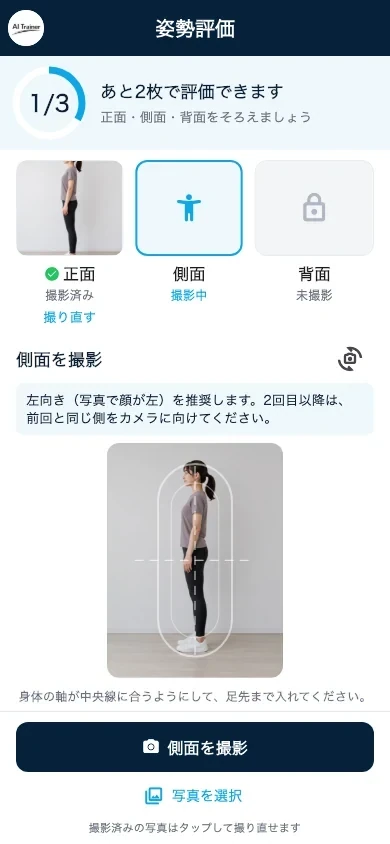
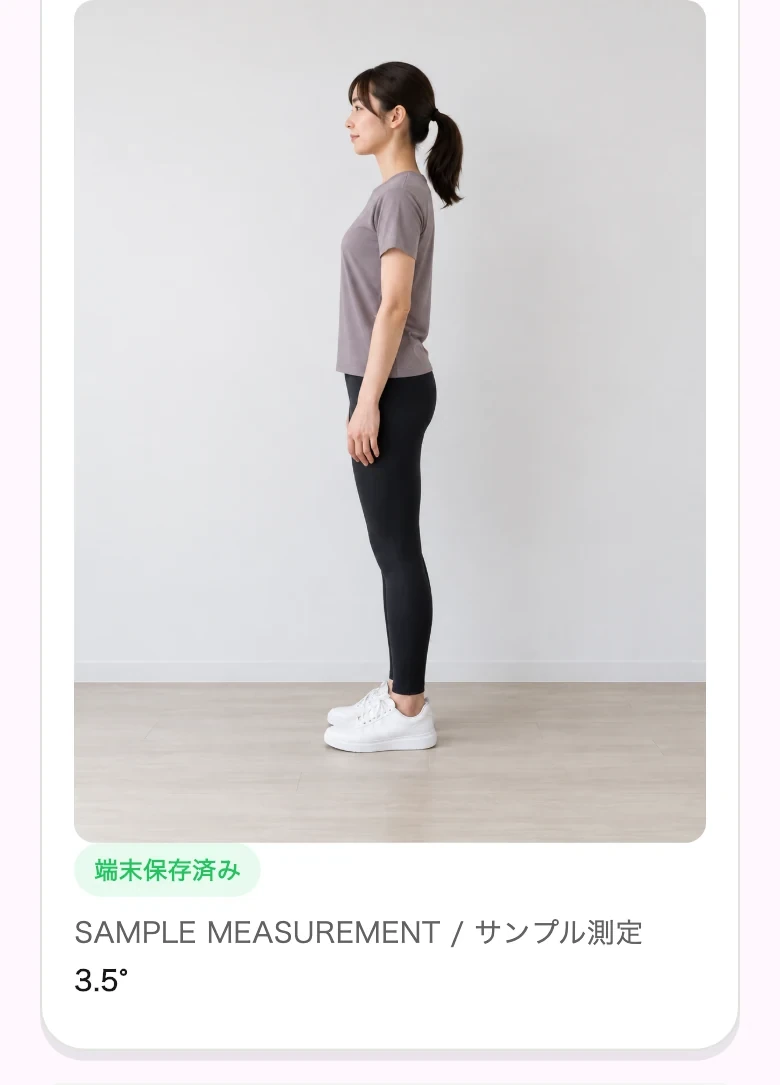
Take front and side photos as guided, then review the AI posture estimate.
Spot trends you may not notice yourself and discuss them with your trainer.
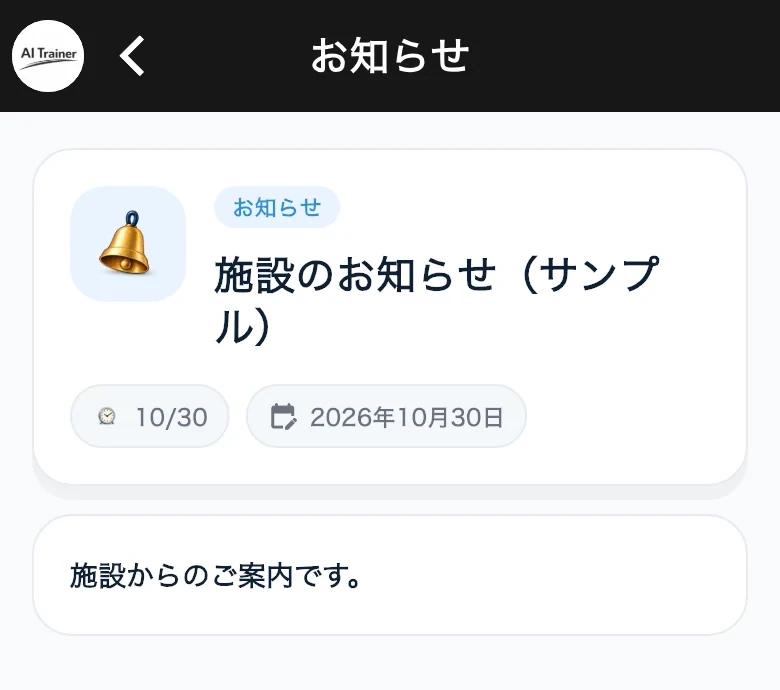
See individual messages and notices from your facility in the app.
Stay up to date on the next steps and facility news between visits.
Tools to keep up daily habits
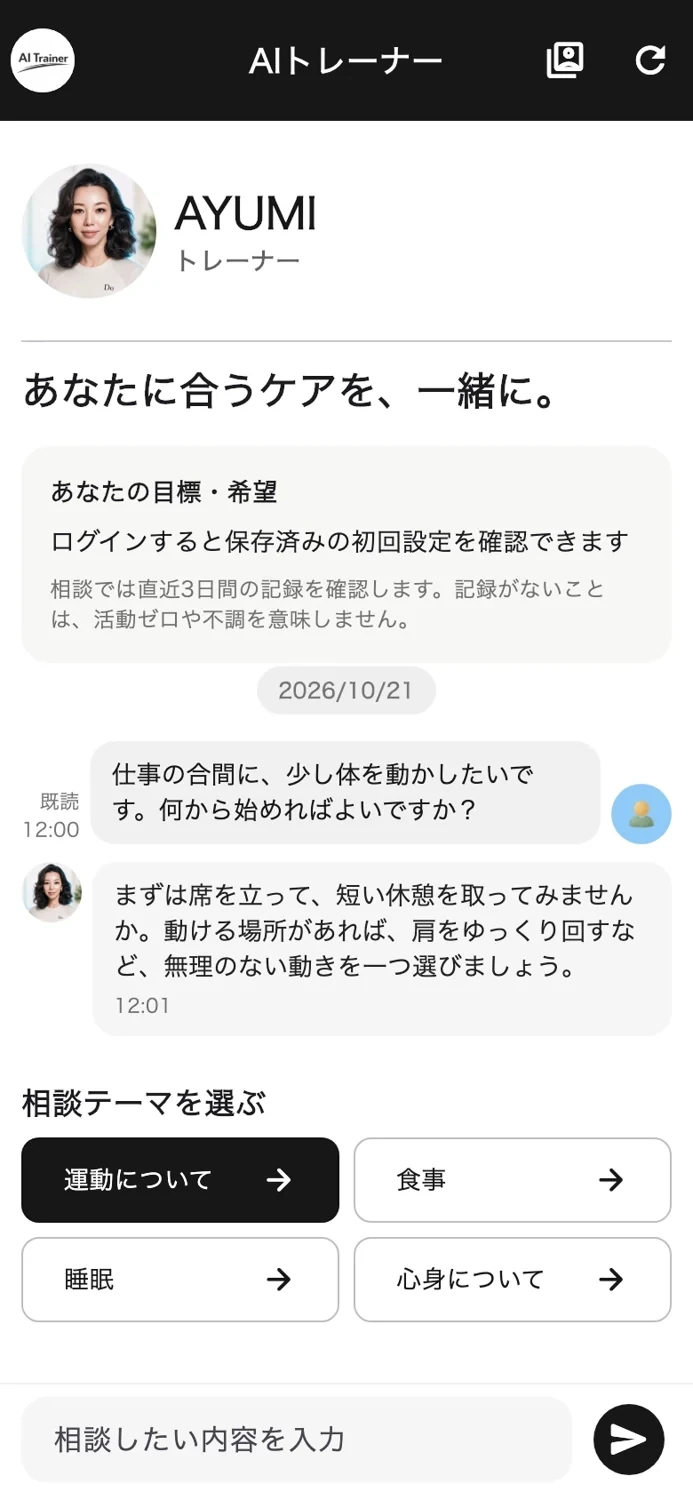
Ask AYUMI about workout menus and questions that come up in your routine.
Get ideas for what to try next when you are unsure.
Play a short video and move when you can, between chores or meetings.
Make it easier to start without setting aside a long block of time.
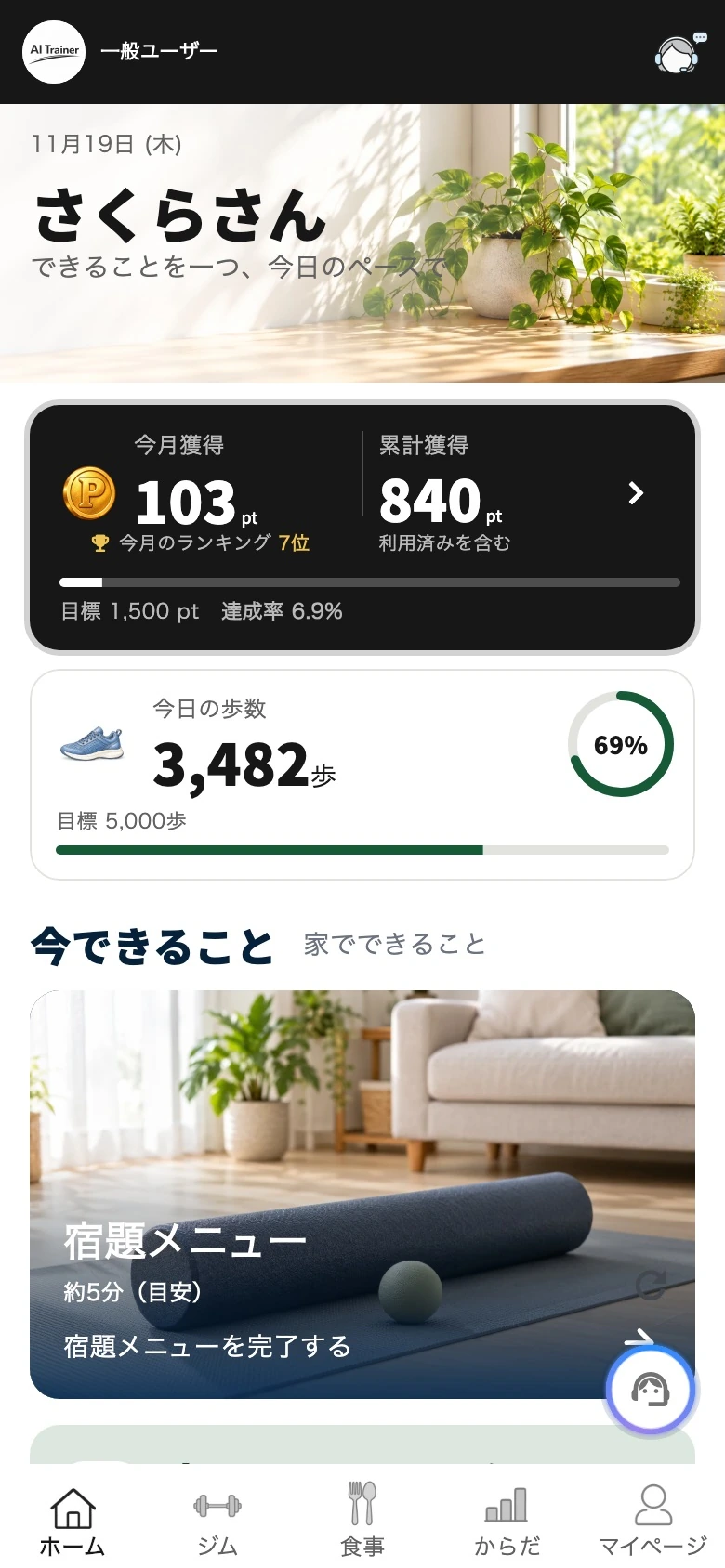
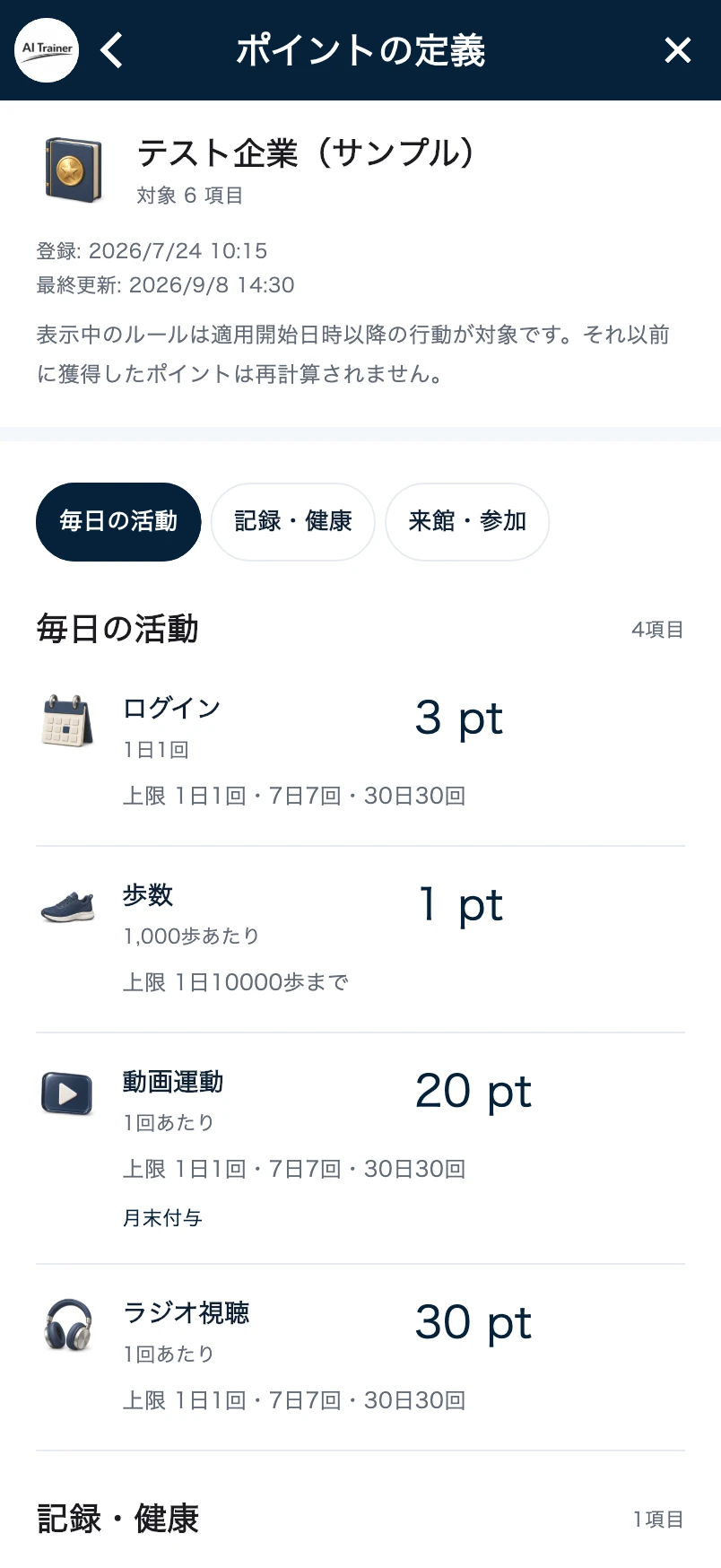
Enable step syncing and check today’s total. Points are credited when eligible conditions are met.
Track ordinary walks with less manual entry.
Listen to health episodes while walking or doing chores.
Pick up exercise and wellness tips without watching the screen.
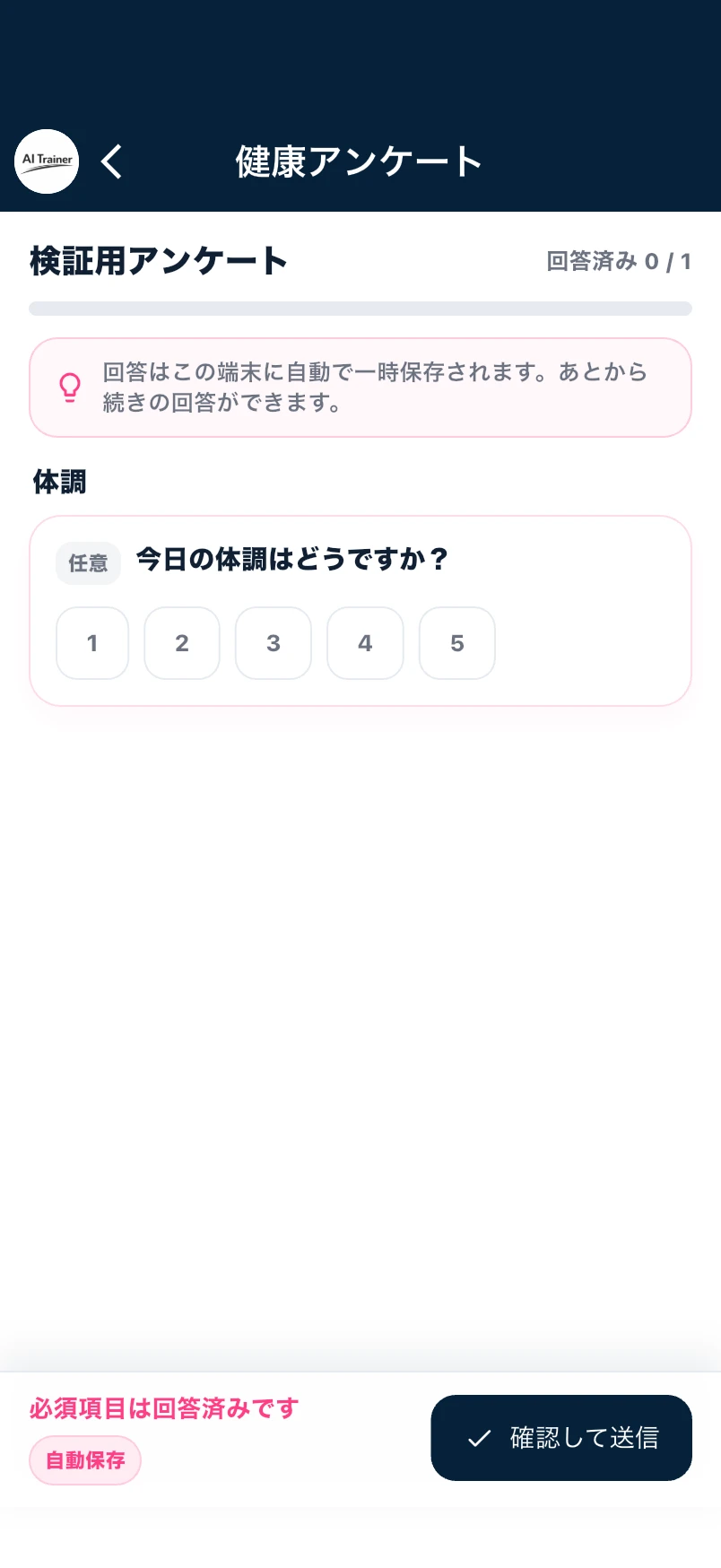
Fill in available surveys about your health or service experience.
Use responses for monthly reflection; eligible surveys may award points.
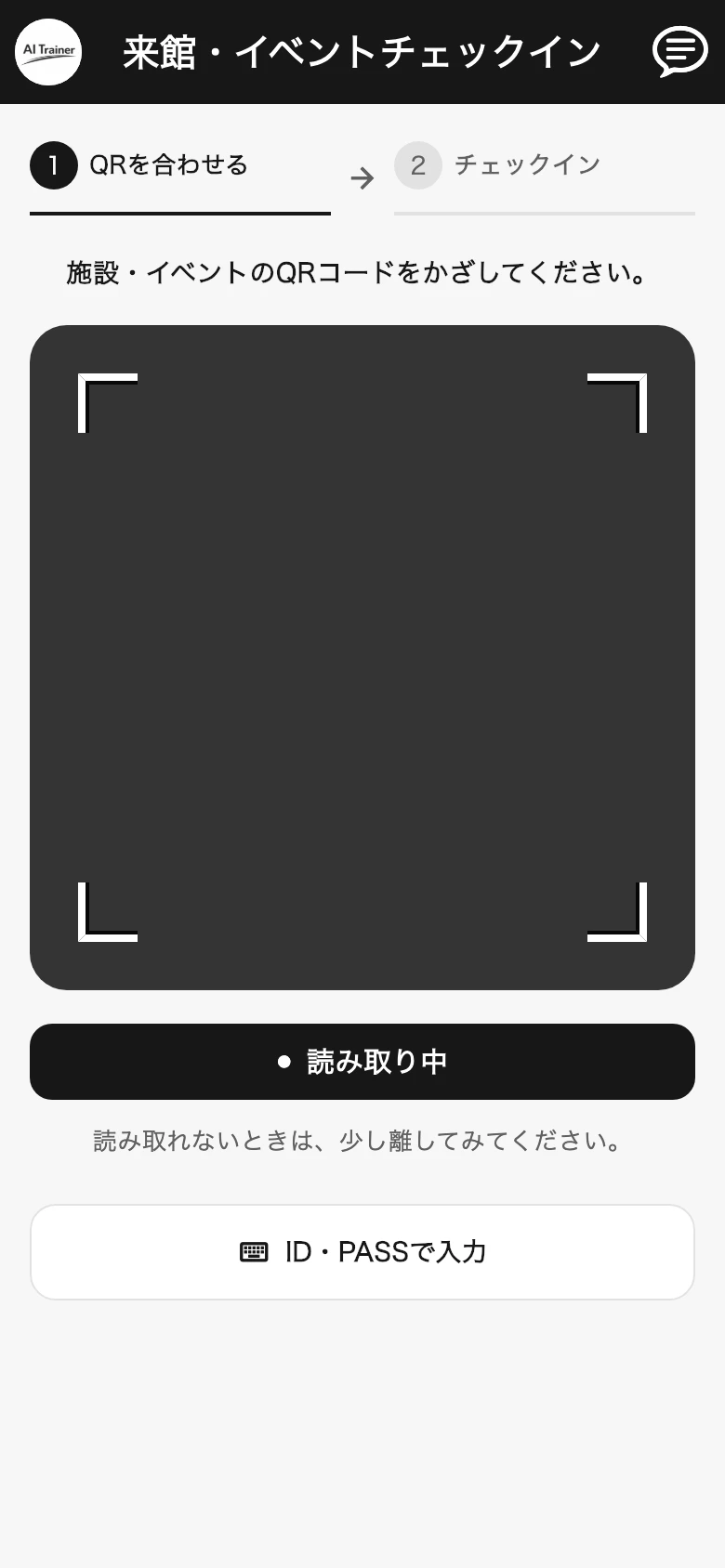
Scan the facility’s QR code when visiting or attending an event.
Log the visit or attendance on the spot.
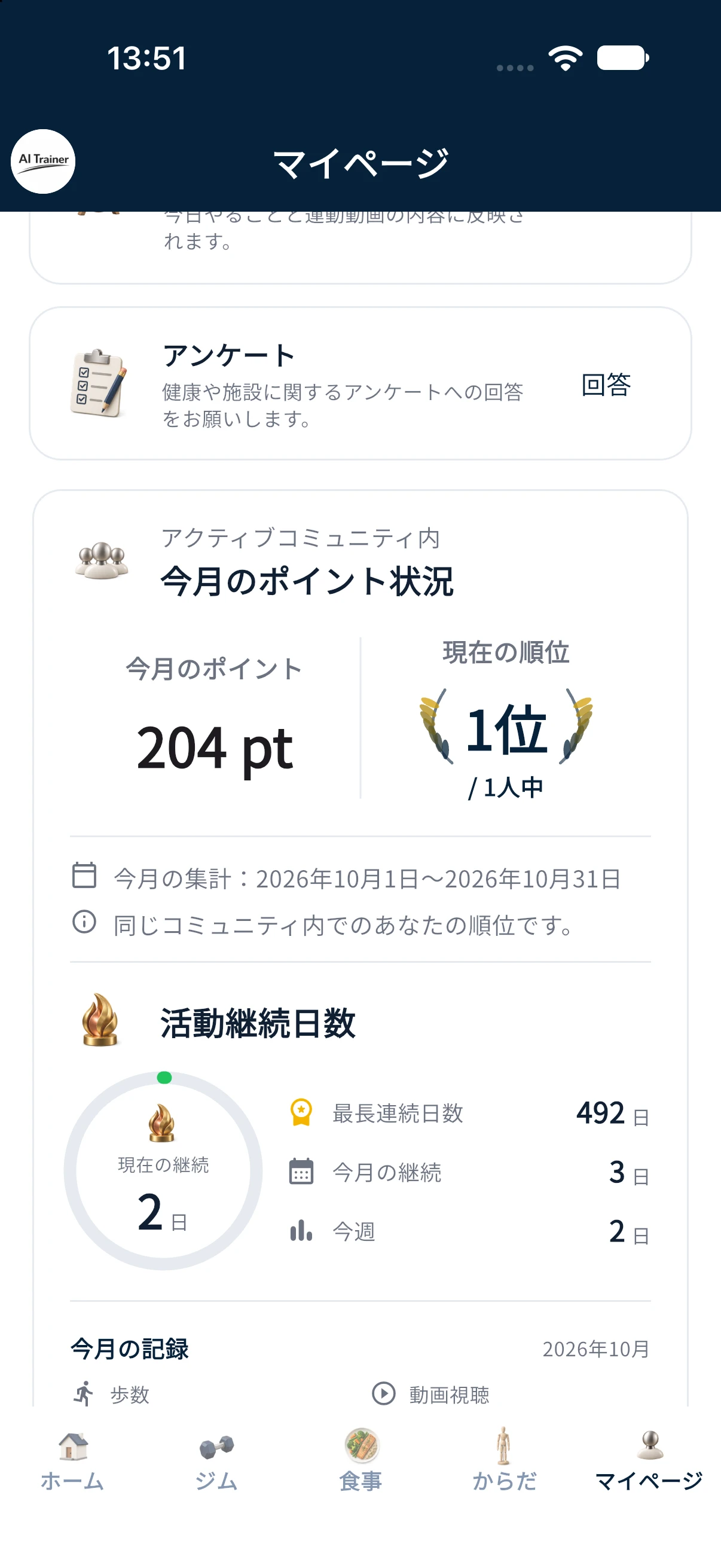
In participating groups, see how your points rank alongside other members.
See how your ongoing activity adds up alongside your group.
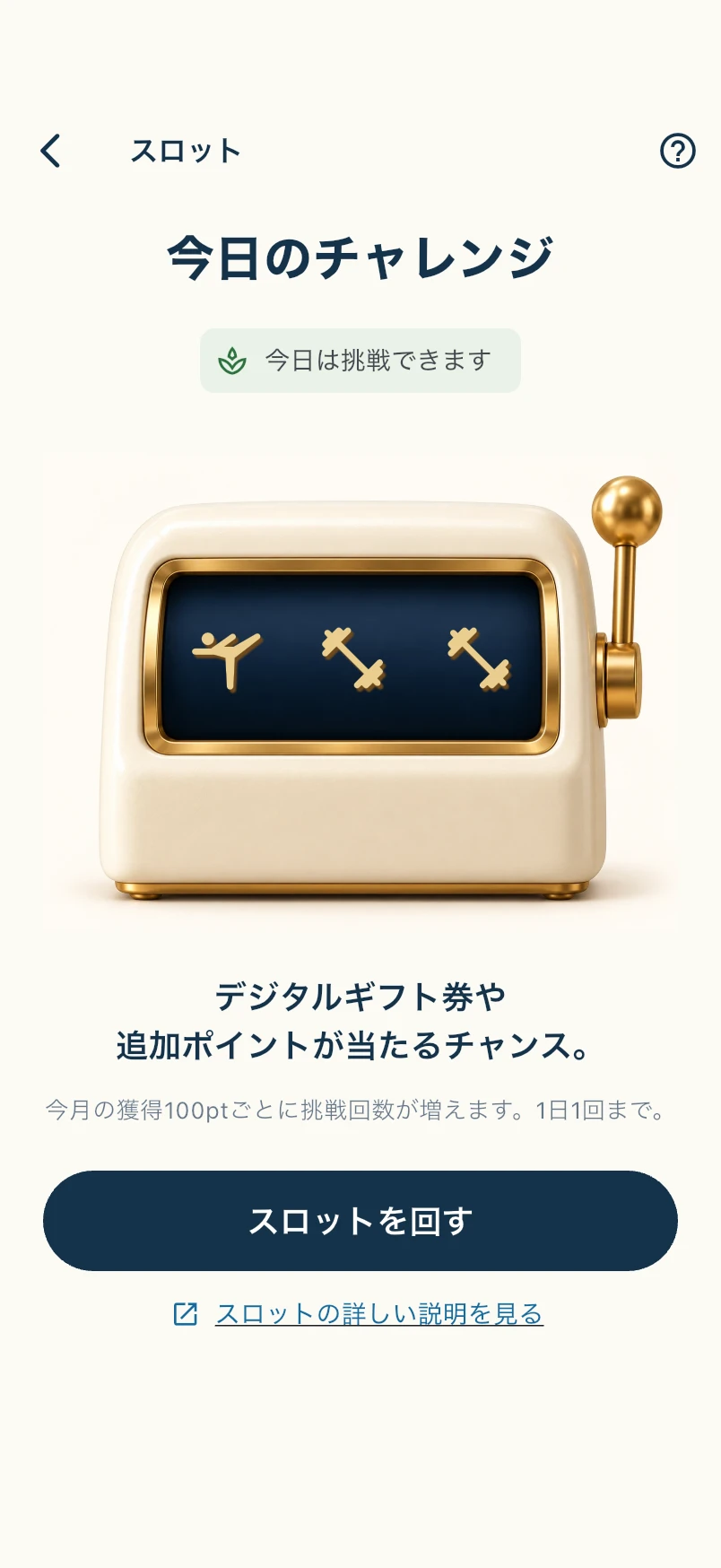
Play the slot challenge when eligible. Playing does not reduce your points.
Add a small moment of fun to your routine.
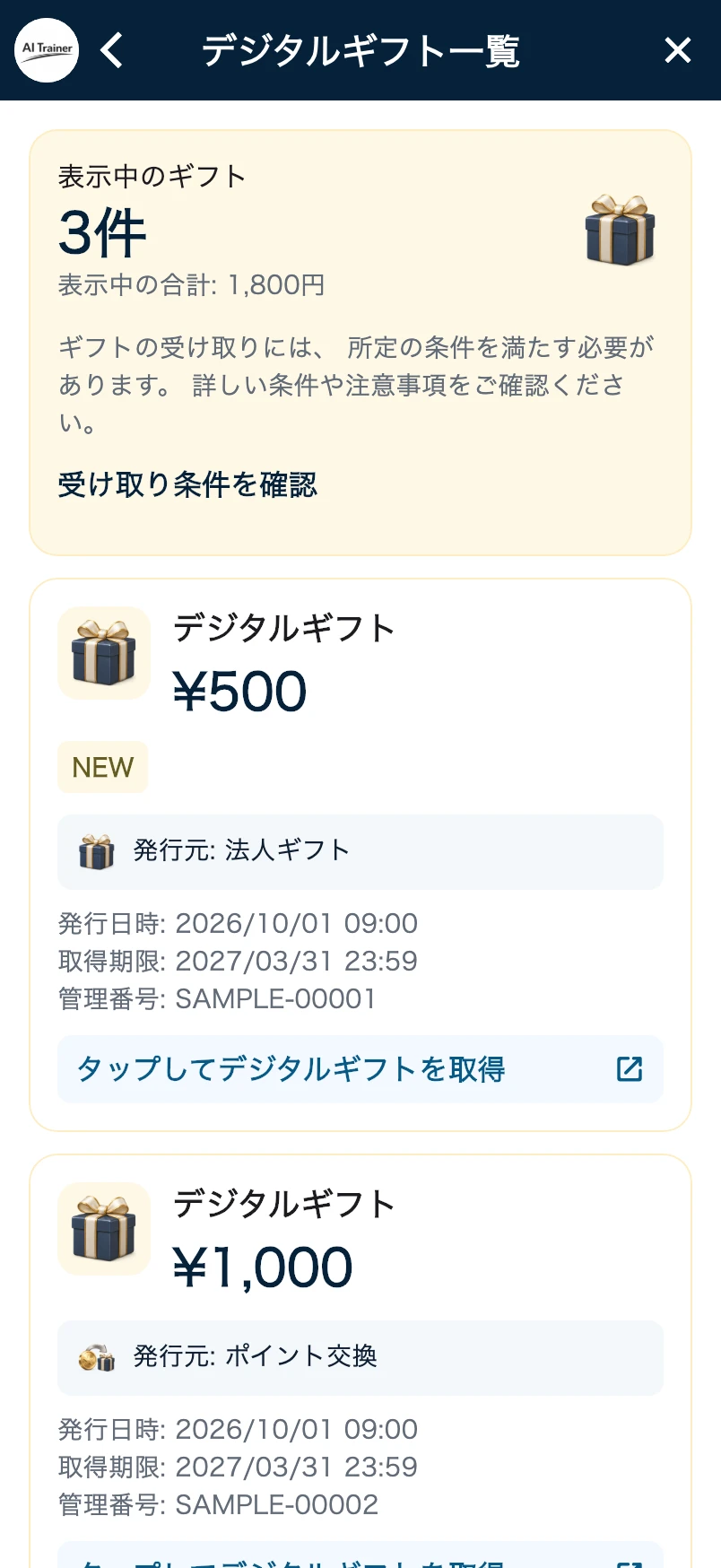
Meet the applicable conditions and check digital gifts or rewards offered by your organization.
Eligibility and rewards vary by organization or campaign. A ¥500 gift card is one example.
Trainers and administrators
Review training logs, posture assessments, meals and homework. Plan the next session and message members when they need guidance.
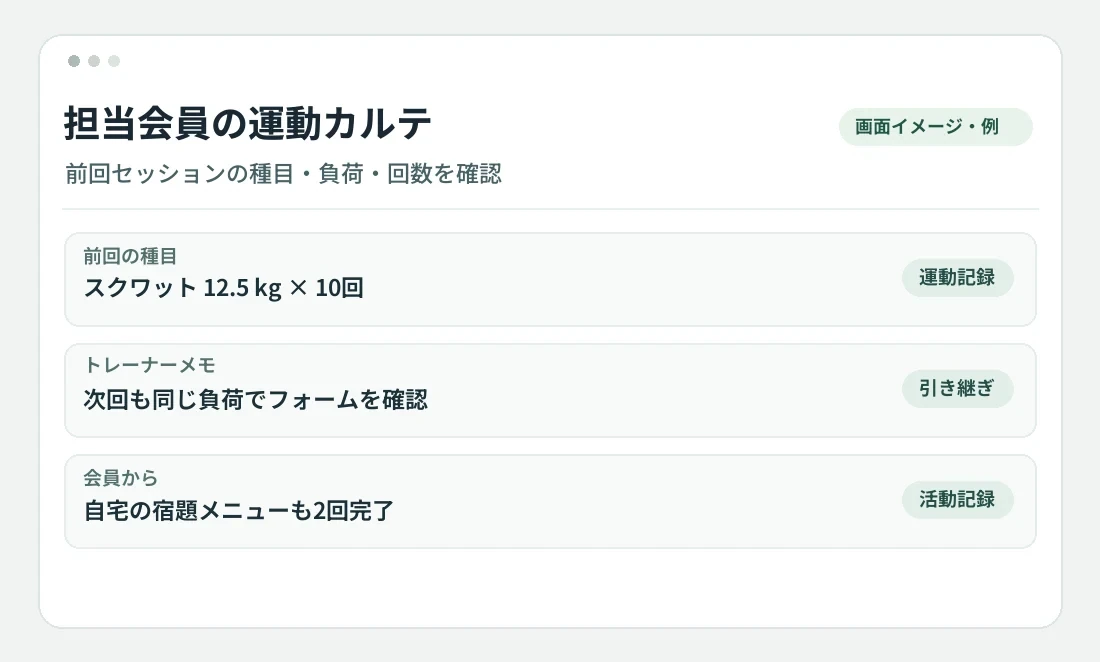
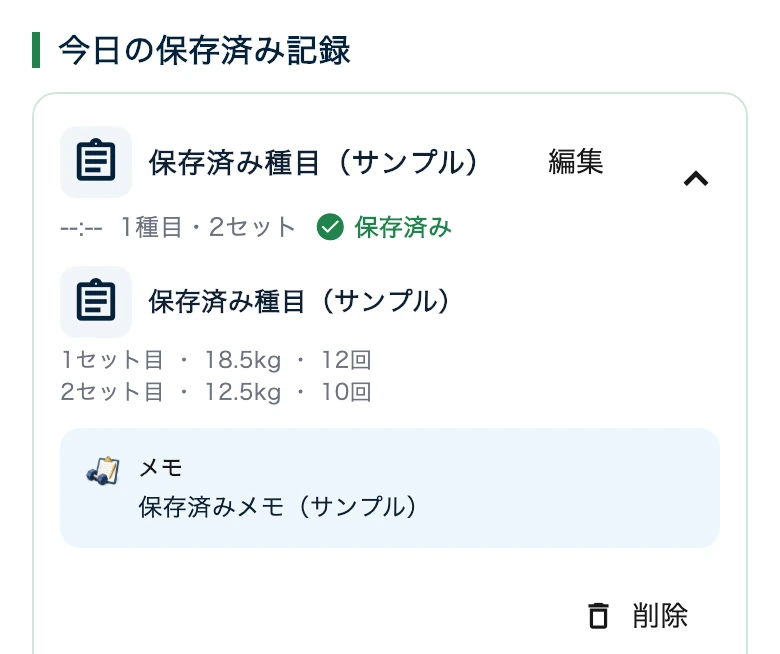
Review the exercises, loads, reps and trainer notes from the previous session in the member’s record.
Pick up where the previous session left off, even when another trainer takes over.
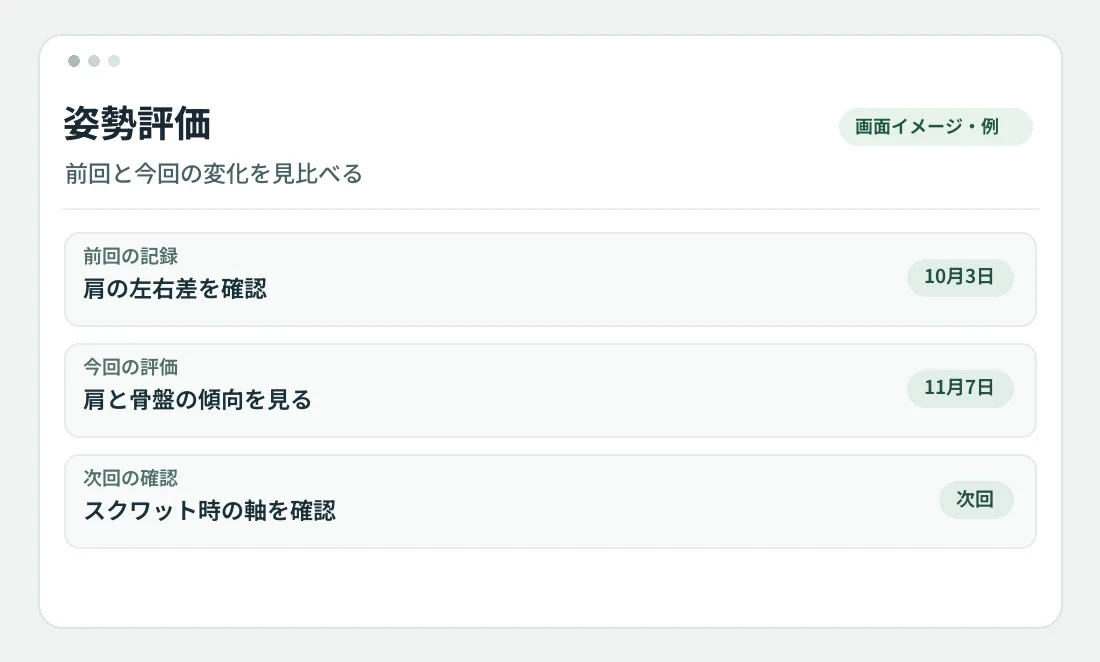
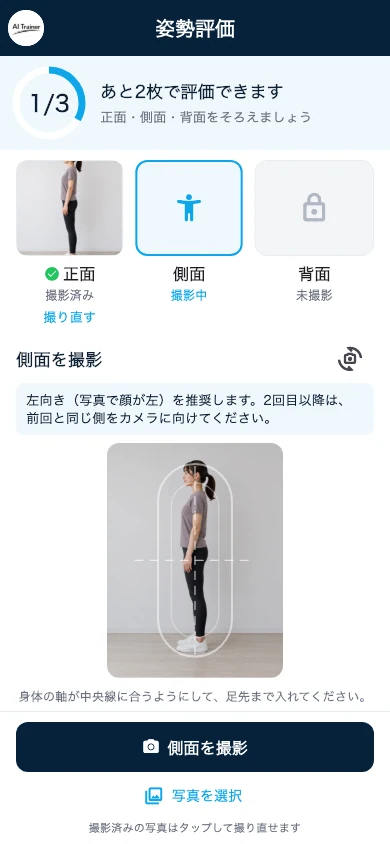
Compare a posture photo with the estimated skeletal lines and discuss shoulder or pelvis alignment with the member.
Use the result to decide which movement to look at next time.
Review a shared meal photo, what the member ate and estimated nutrition.
Discuss a realistic change the member can keep up with.
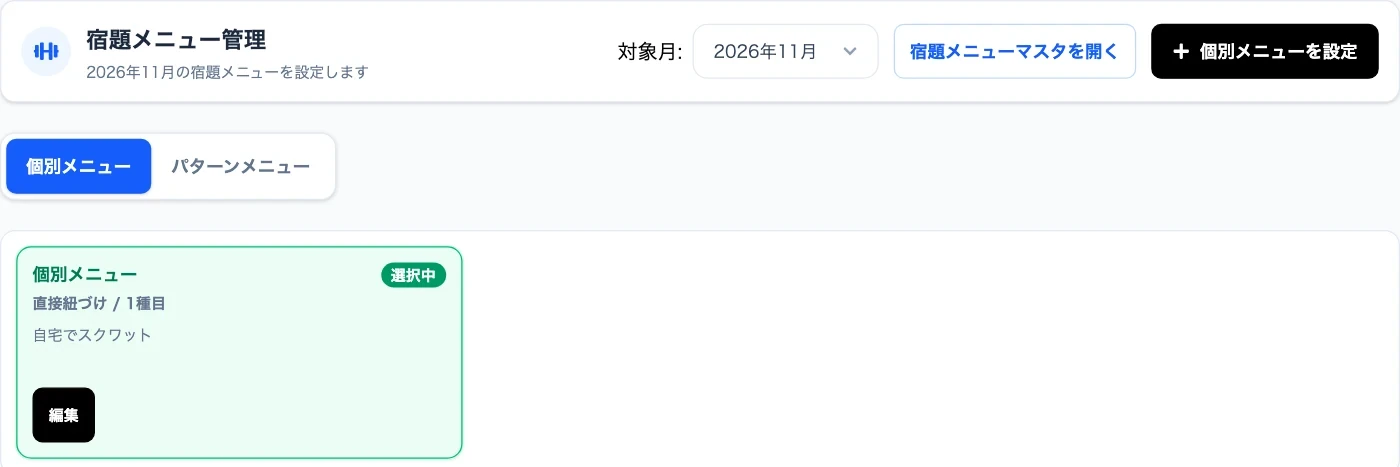
Assign independent workouts for home or the gym and review what the member completed before their next visit.
Use the work done between visits to guide the next session.
Review training, posture, meals and completed assignments, then choose the next exercises and loads.
Plan around what the member has actually done.
Use recent assignments or visits to ask a question or suggest what to try next.
Answer a member’s question without waiting for the next visit.
Tools for running a gym or workplace program
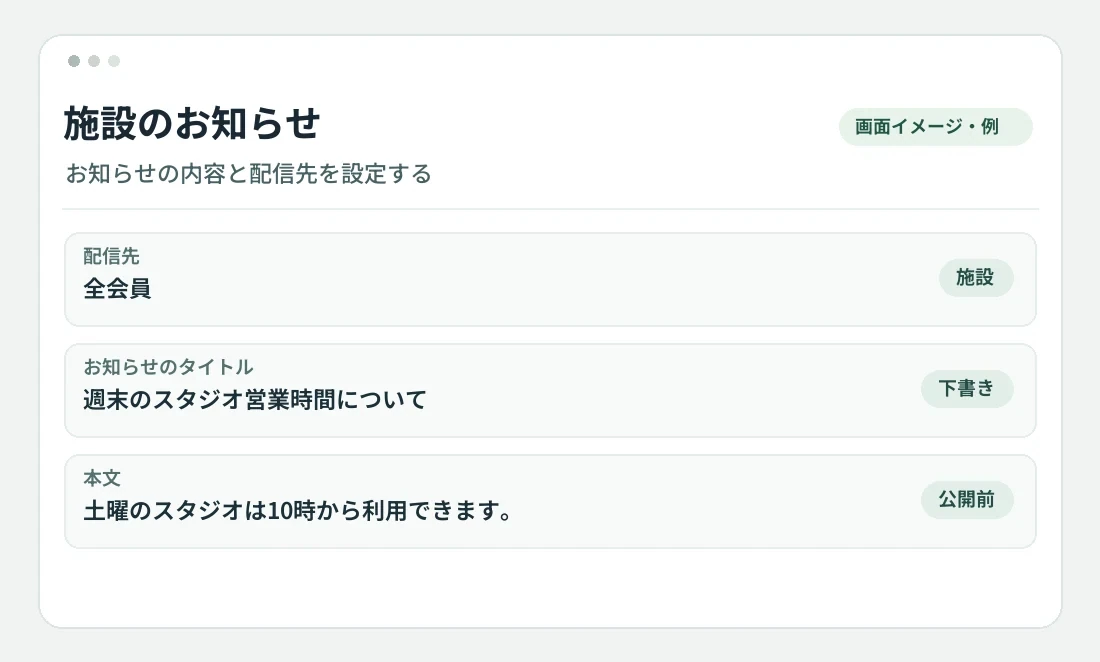
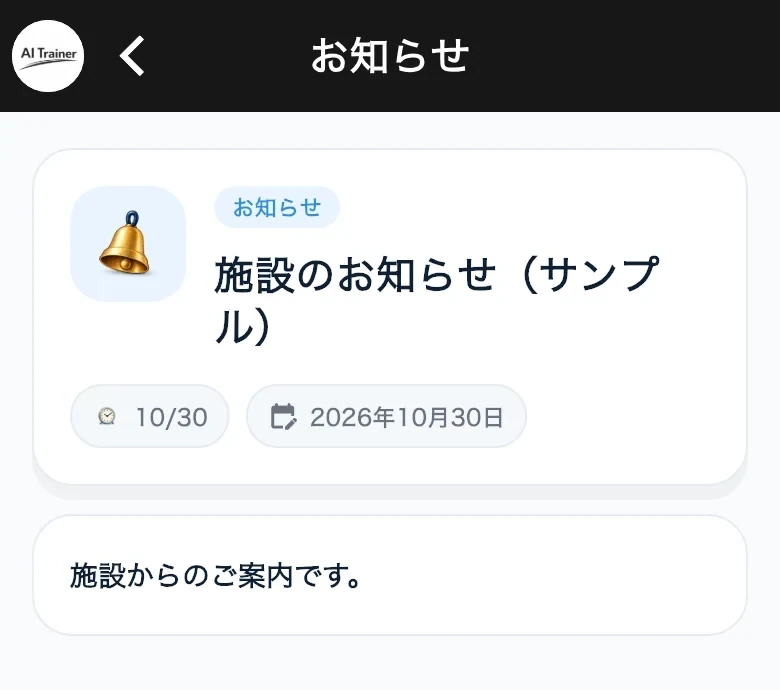
Tell app users about events, changes to opening hours and other facility news.
Keep shared announcements separate from one-to-one messages.
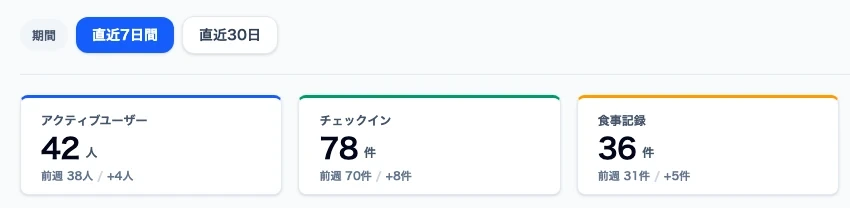
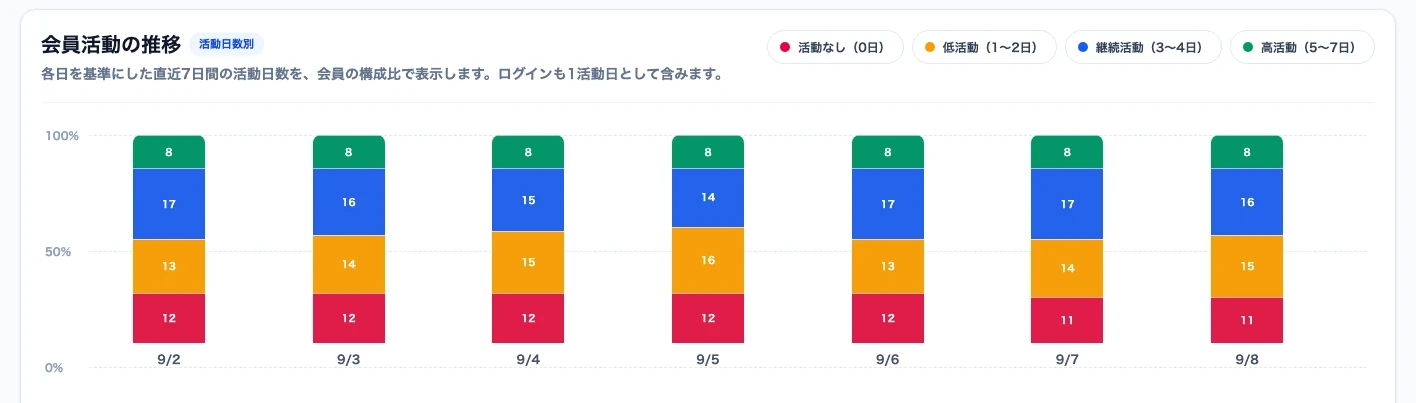
Review trends in available activity, sleep and meal metrics over a selected period.
Use group trends to plan the next health initiative or message.
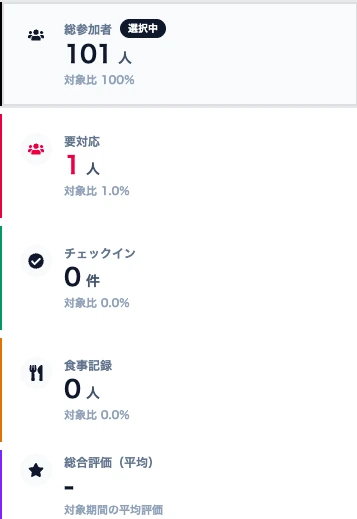
Authorized staff review the member’s activity breakdown and changes over time.
See which activities are consistent and decide what to ask about next.
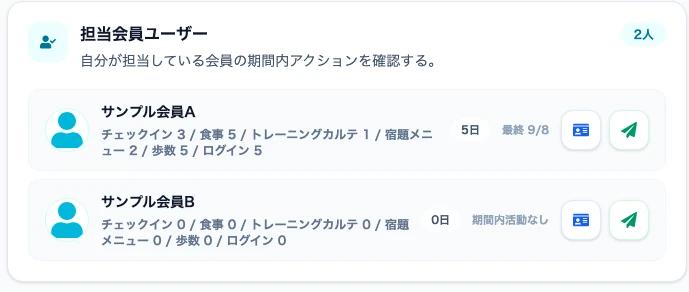
Review visits and activity in the member list, then open an assigned member’s record.
Check what happened last time before speaking with the member.
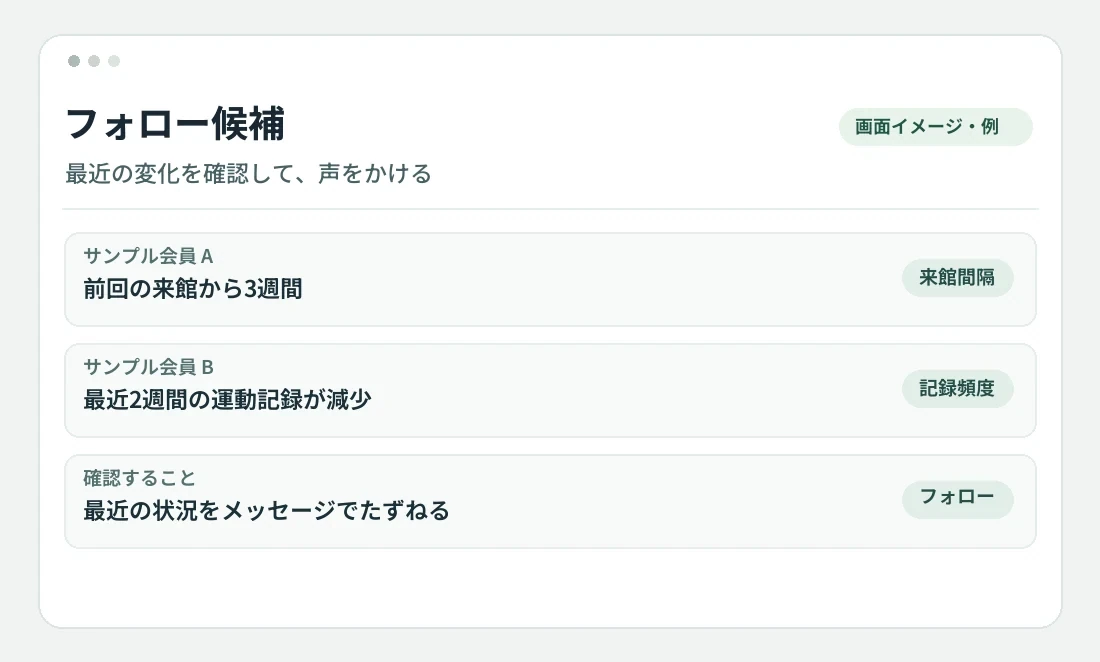
Use changes in visit intervals and logging frequency to spot members who may benefit from a check-in.
Treat a change as a prompt for a conversation, not as a prediction.
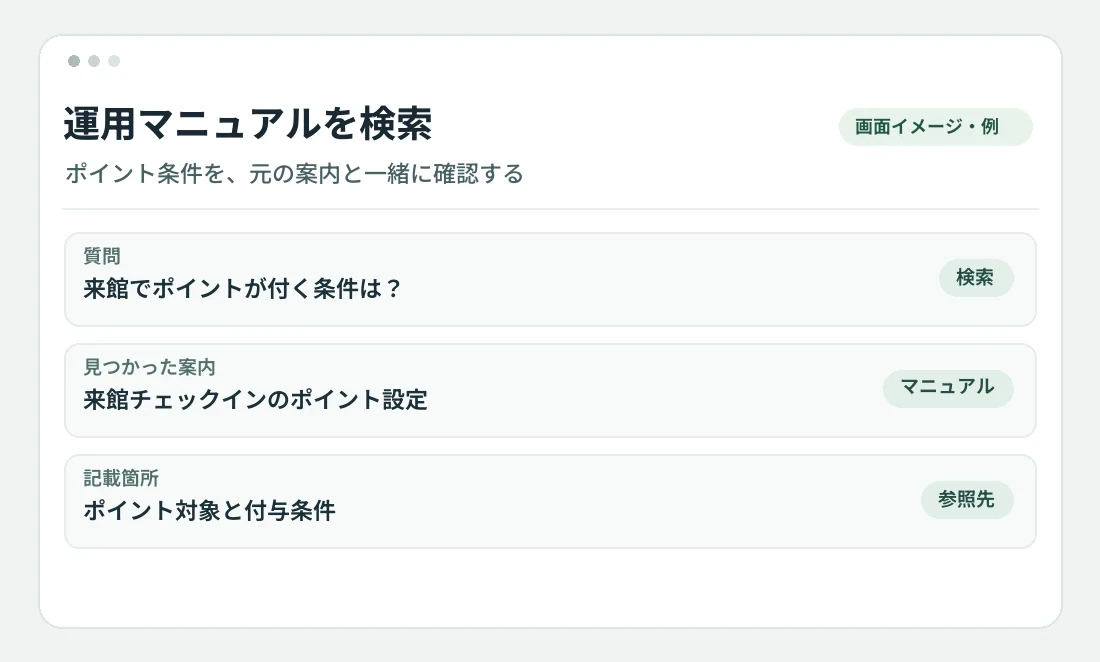
Search registered operating manuals and notices for procedures or point rules.
Find the reference behind your answer when a question comes in.
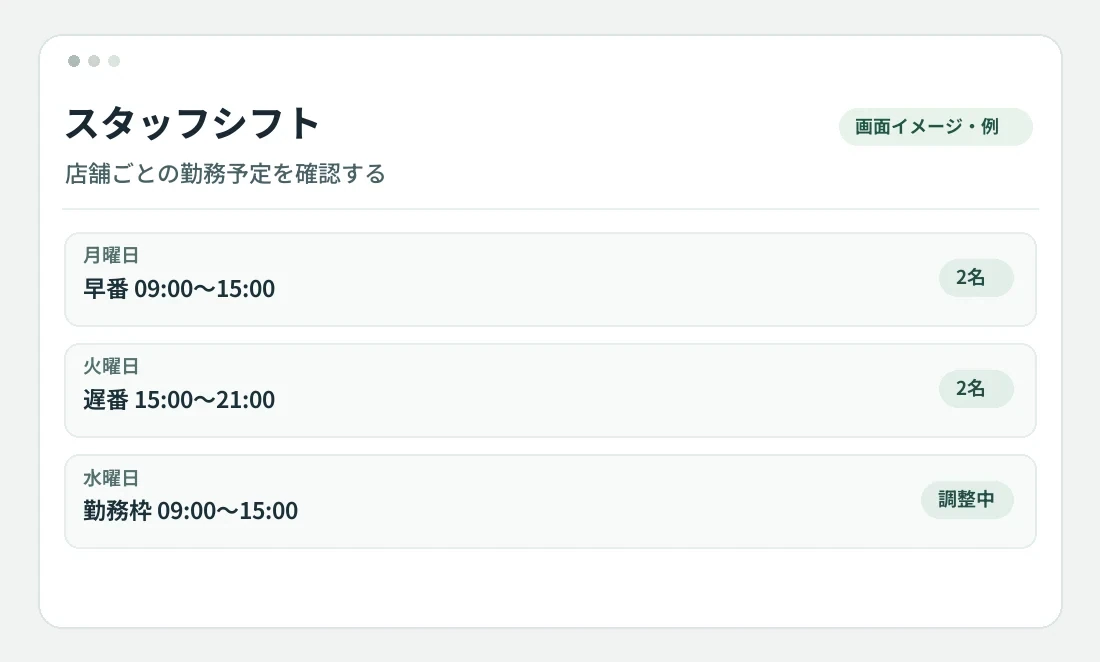
Organize staff shifts by location and day, then review the schedule.
See how each location is staffed.
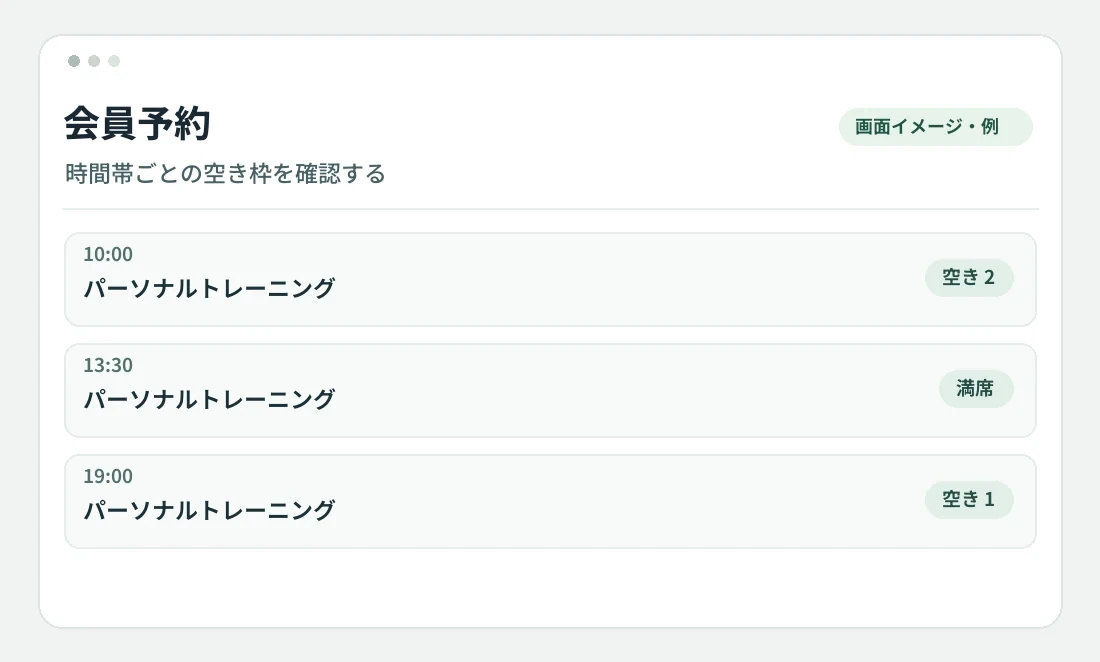
Use the reservation overview to check available and full slots.
Spot busy times and point members to available slots.
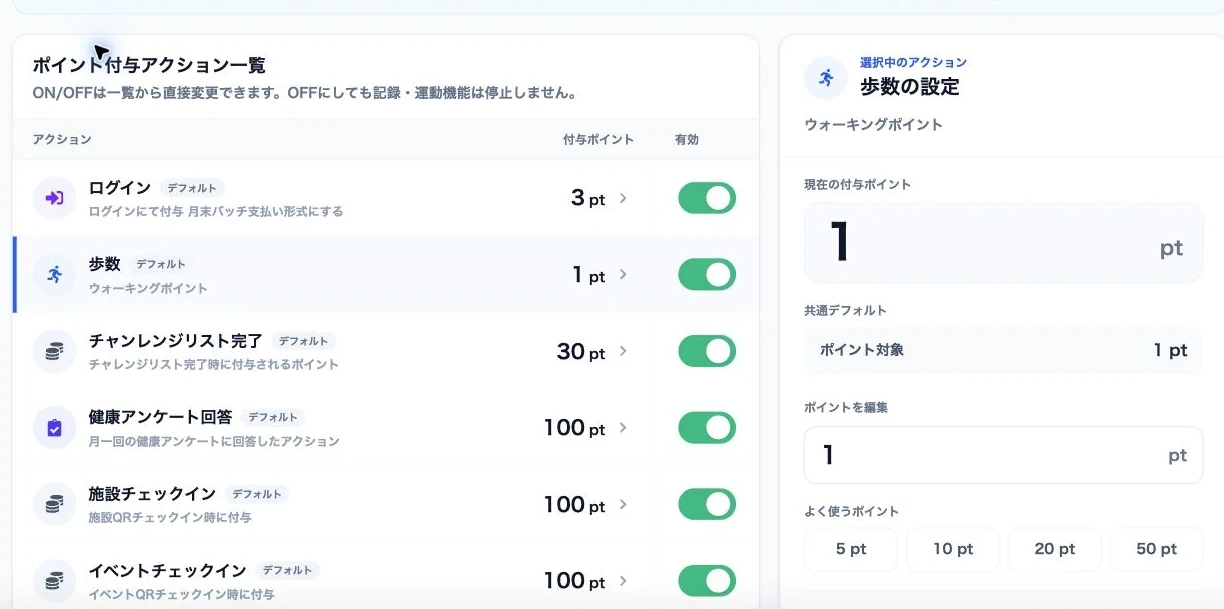
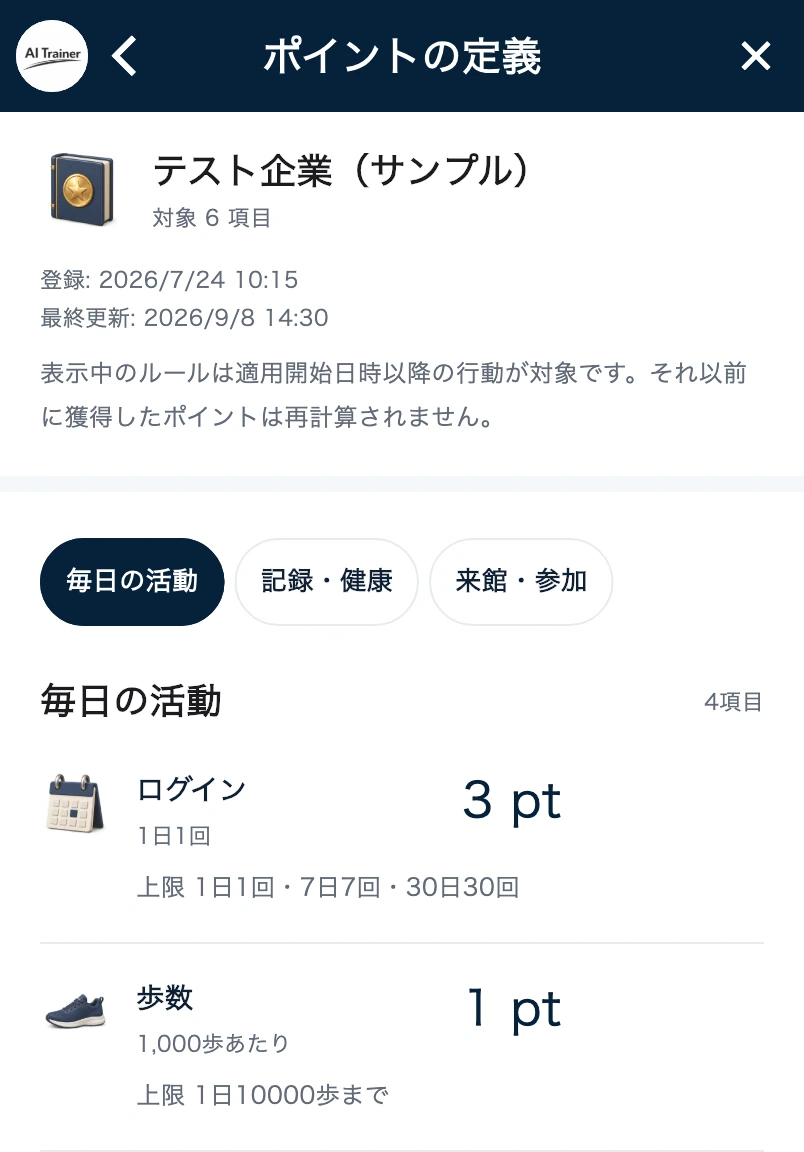
Set which activities earn points, such as walking or checking in, according to your organization’s rules.
Show members clearly which activities count toward rewards.
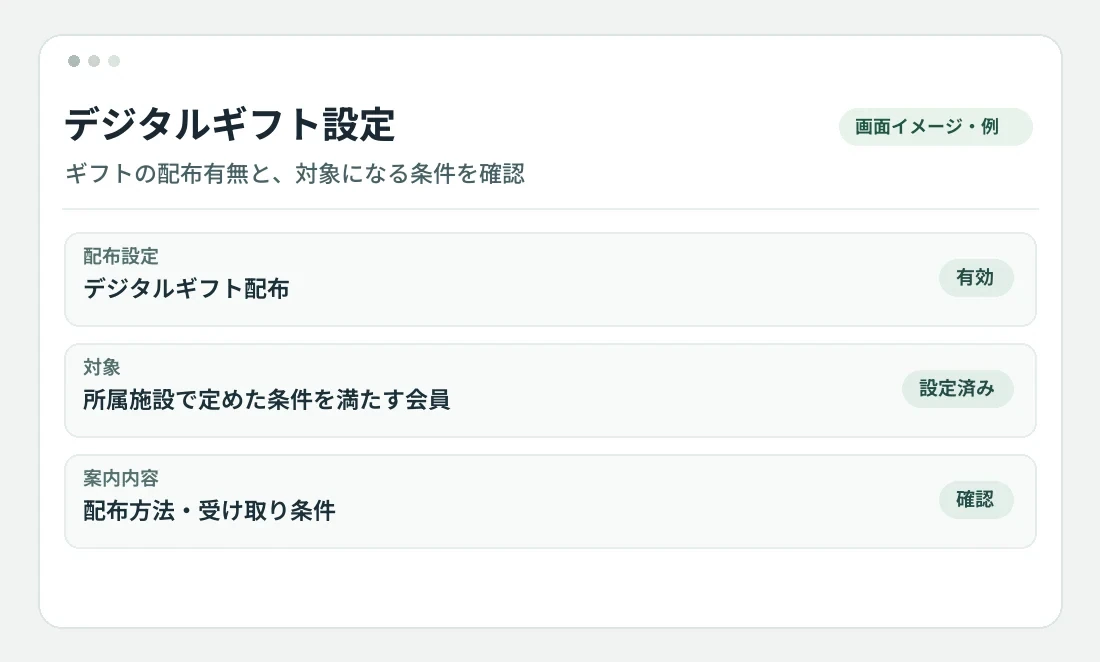
Manage whether digital gifts are offered and which eligibility rules apply.
Keep member guidance consistent with the gift policy.
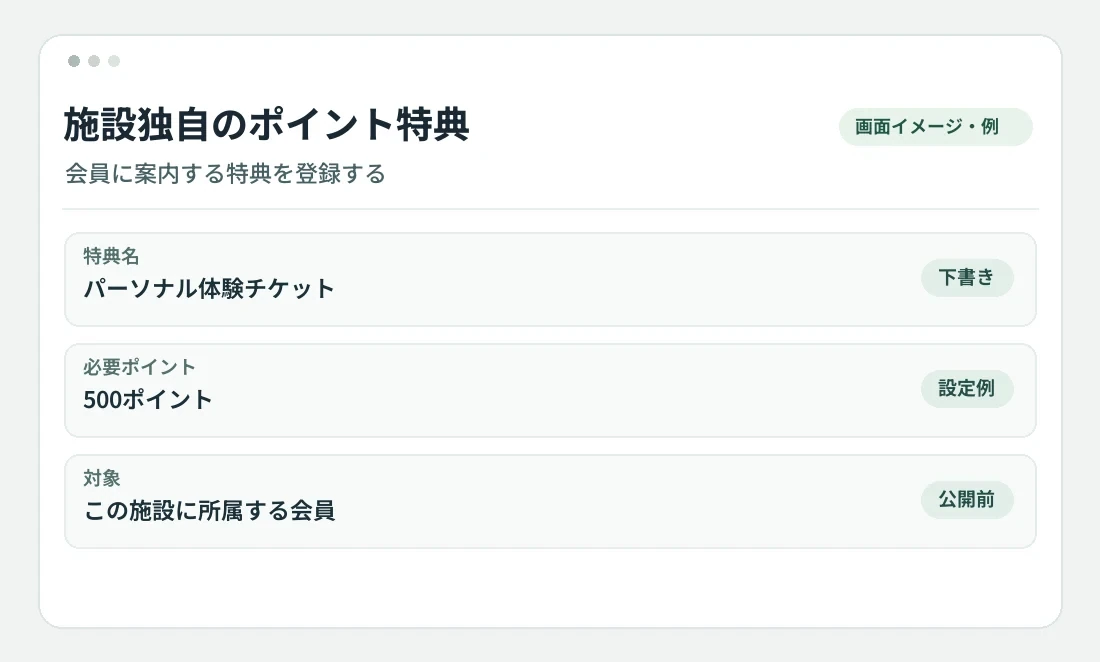
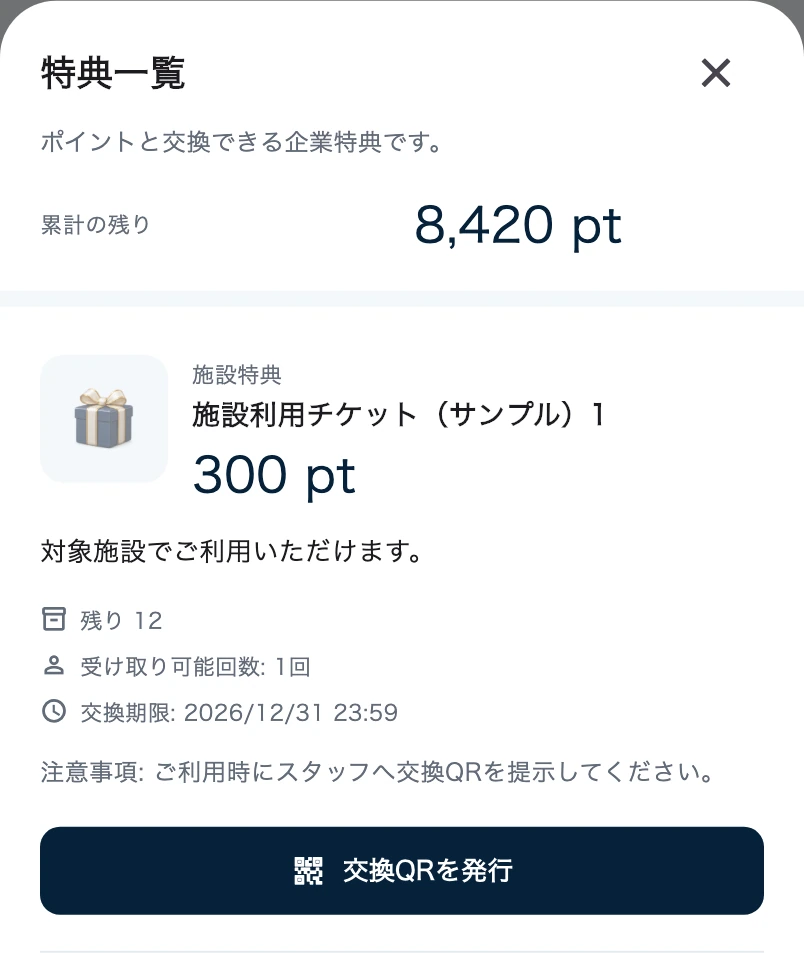
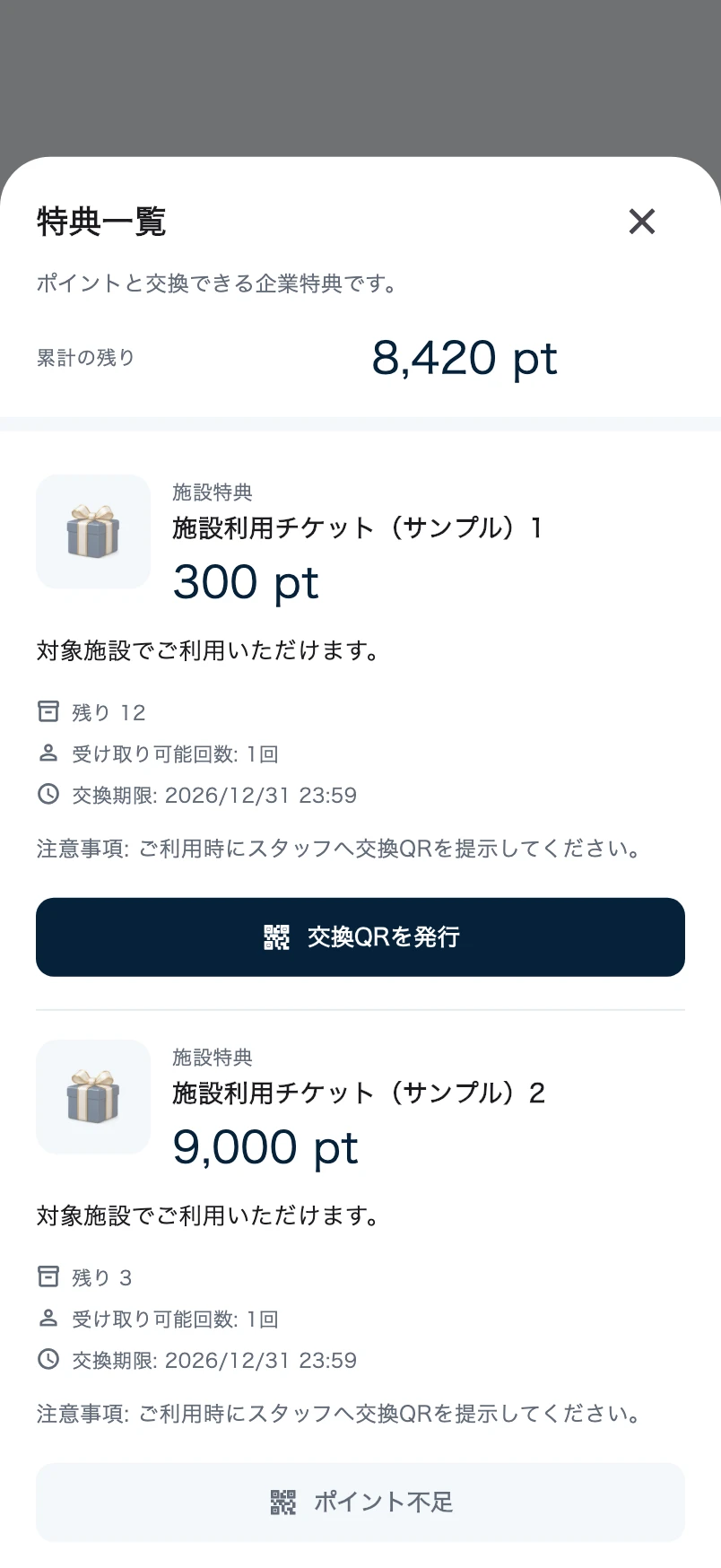
Set organization-specific rewards and tell members how to qualify.
Give members another reason to stay active, tailored to the workplace or gym.