
How to Set Up Step Sync
Connect Apple Health on iPhone or Health Connect on Android. Step sync must be configured in the mobile app.


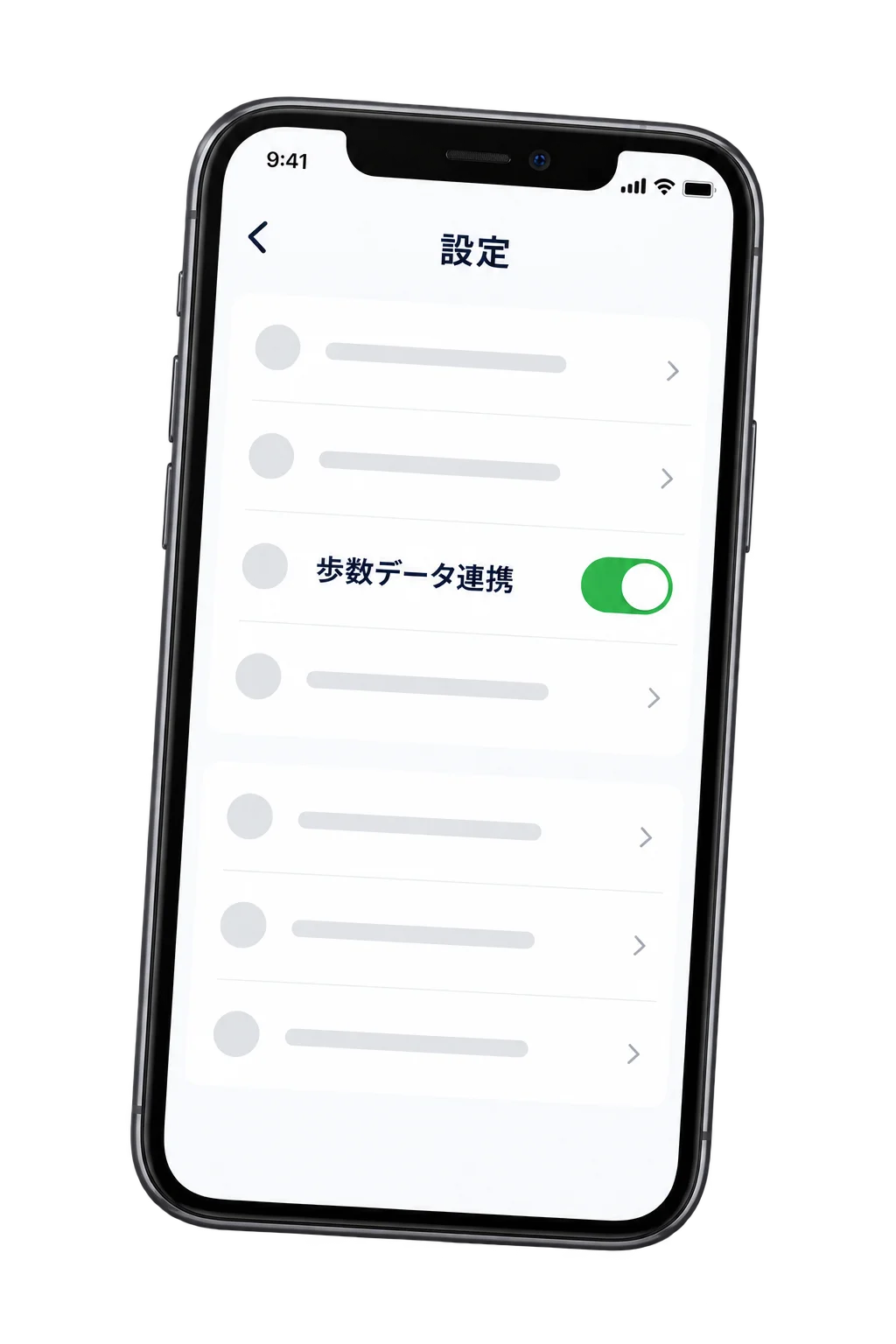
4 simple steps
Open My Page › Settings › Step Data Sync in AI-Trainer and grant step read access on your phone.
Open AI-Trainer
Launch the mobile app and sign in.
Go to My Page › Settings
Tap My Page in the bottom bar, then tap Settings.
Turn on Step Data Sync
Toggle Step Data Sync ON to trigger the OS permission screen.
Allow step reading
Allow AI-Trainer to read Steps in Apple Health (iOS) or Health Connect (Android).
iPhone (Apple Health)
When the Apple Health prompt appears, turn ON Steps and tap Allow. To re-check later, open iOS Settings › Health › Data Access & Devices › AI-Trainer.
Android (Health Connect)
When the Health Connect prompt appears, enable Steps read permission and tap Allow. Make sure Health Connect is installed and updated from Google Play if your device runs Android 13 or earlier.
If steps do not update
Confirm that OS step read permission is enabled, reopen the Home screen of the mobile app to trigger sync, and check App Usage Guide or FAQ for further help.